What’s New in Playwright Integration 2.0?
1. Browser Different Results TrackingBrowser Different Results Tracking
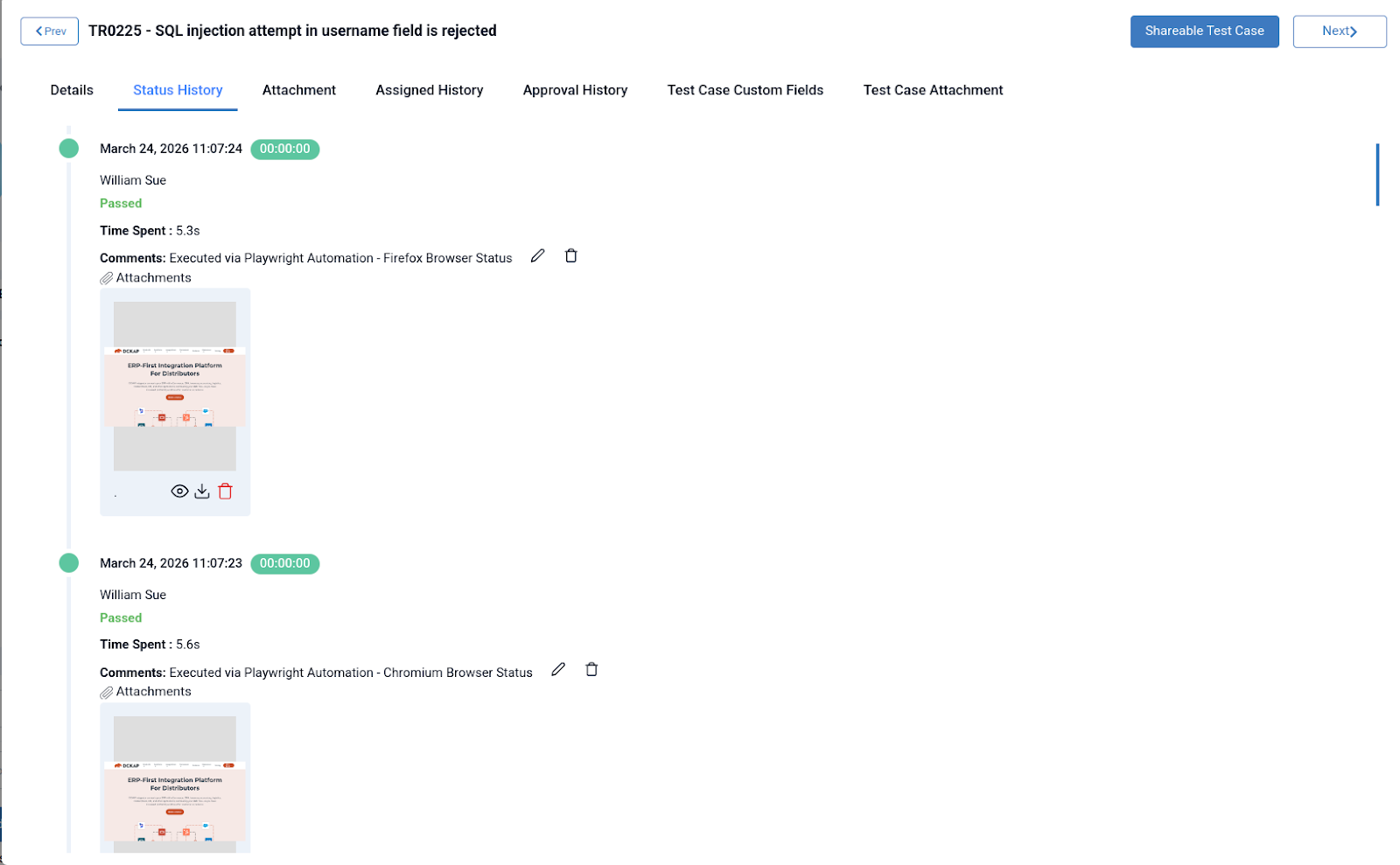
Captures and displays test execution results separately for each browser, enabling easy comparison of pass/fail status, errors, and behavior differences to quickly identify browser-specific issues and ensure consistent cross-browser functionality. Run a single test case across:- Chromium (Chrome)
- WebKit (Safari engine)
- Firefox
2. Automatic Screenshot Capture
Playwright generated screenshots to the respective test cases in QA Touch, helping teams quickly debug failures with complete visual and execution evidence. Visual proof for failures Faster root cause analysis. Improved collaboration between QA & Dev teams.3. Time Spent Tracking
Records the execution time of each test case across different browsers, providing insights into performance variations, helping identify slow-running tests, and supporting optimization of overall test execution efficiency.Prerequisites
Before getting started, ensure you have:- Node.js 18+
- QA Touch account with API access
- Playwright installed
Step-by-Step Setup (Playwright Integration 2.0)
Step 1: Install Playwright
npm init playwright@latest After complete the playwright installation and run the npx playwright testStep 2: Install QA Touch Reporter
npm i playwright-qatouch-reporter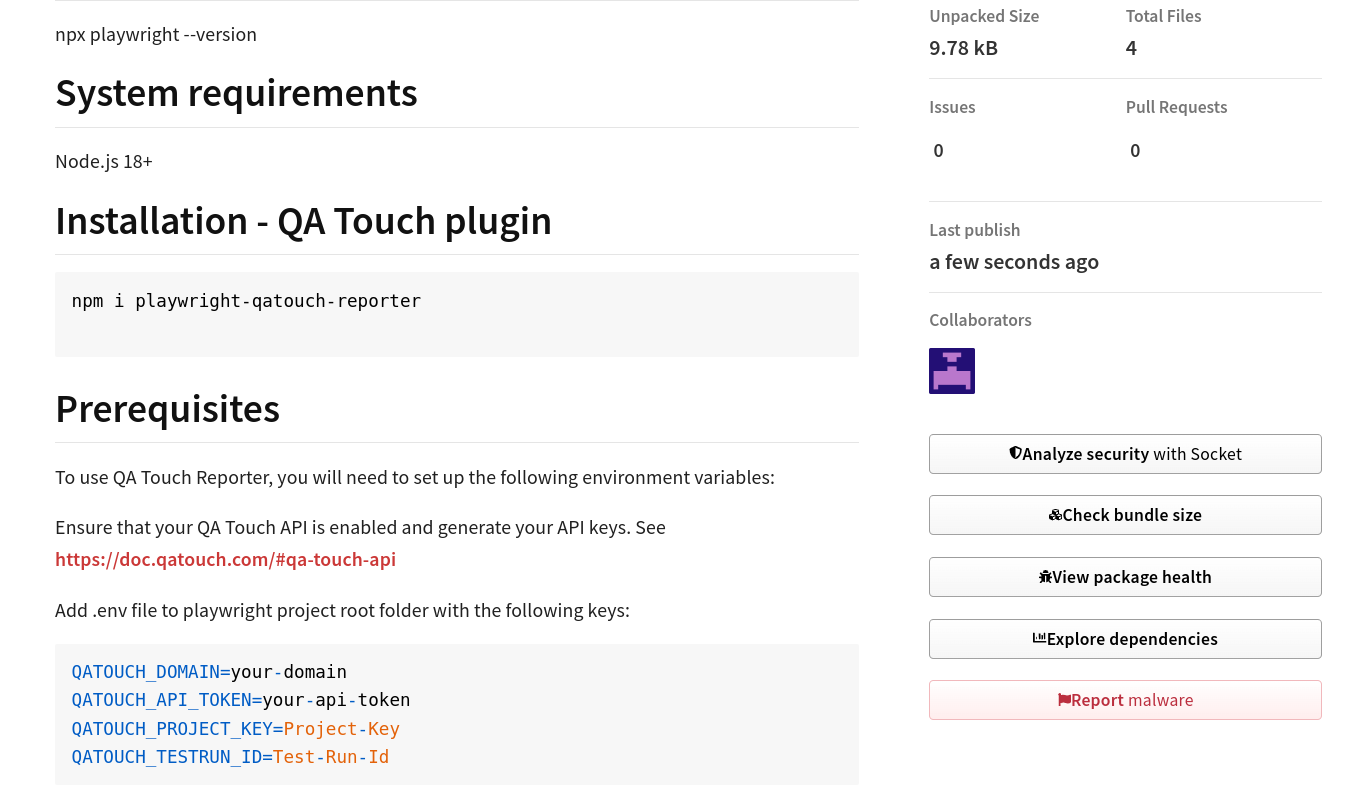
Step 3: Generate QA Touch API Key
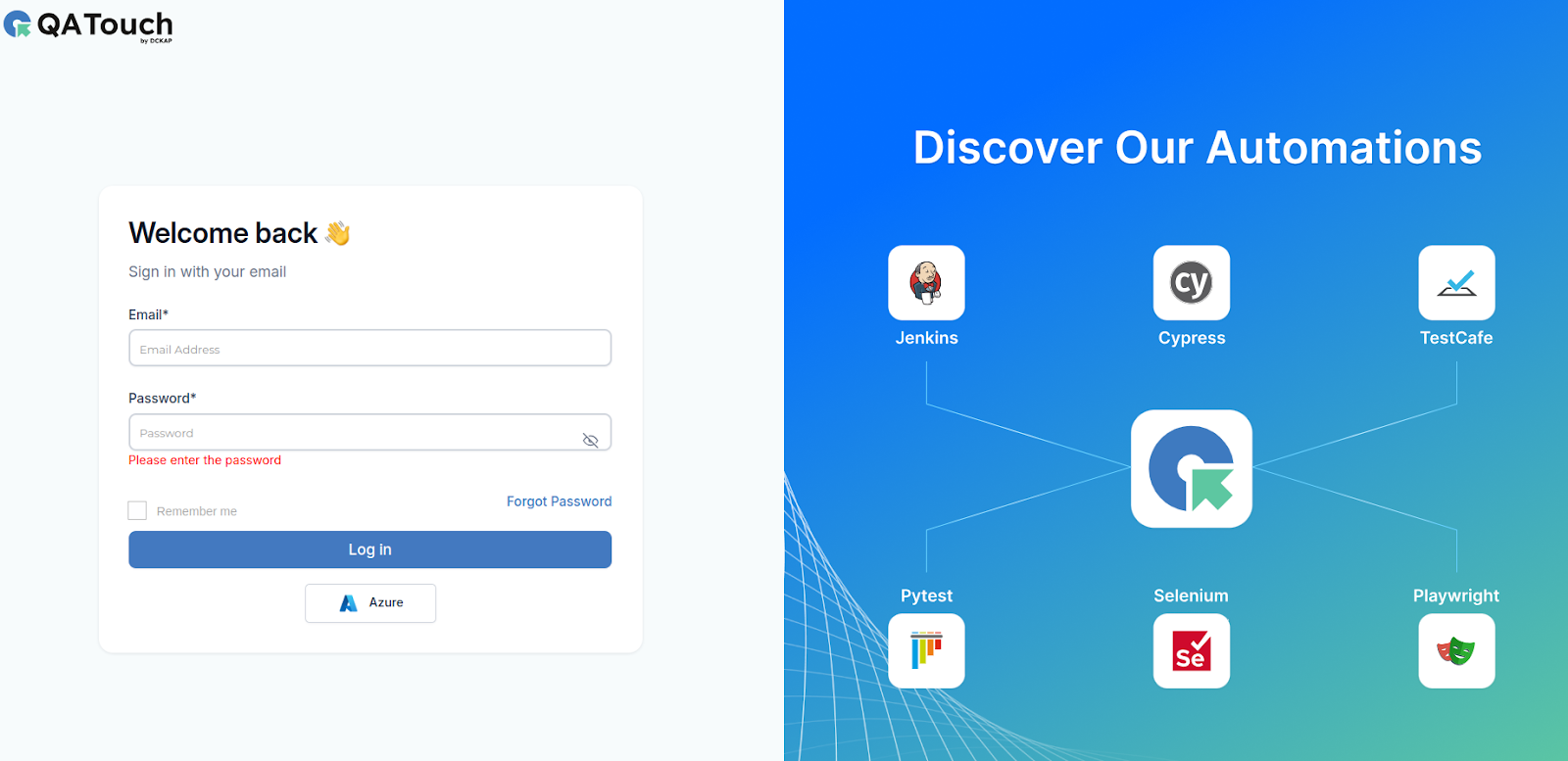
- Login to QA Touch
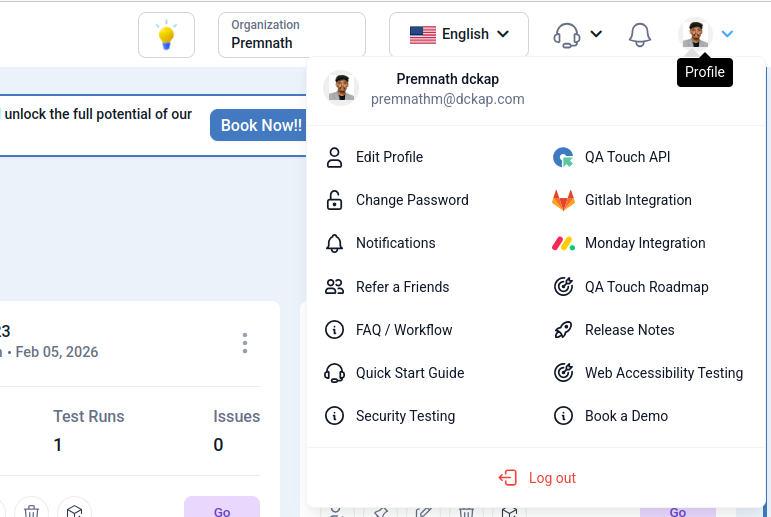
- Go to My Profile
- Generate API Token
- You can refer QA Touch API from https://doc.qatouch.com/#qa-touch-api
- Access the Package URL https://www.npmjs.com/package/playwright-qatouch-reporter
- Install the package in Playwright root directory by executing the below command from your automation environment from the command line.
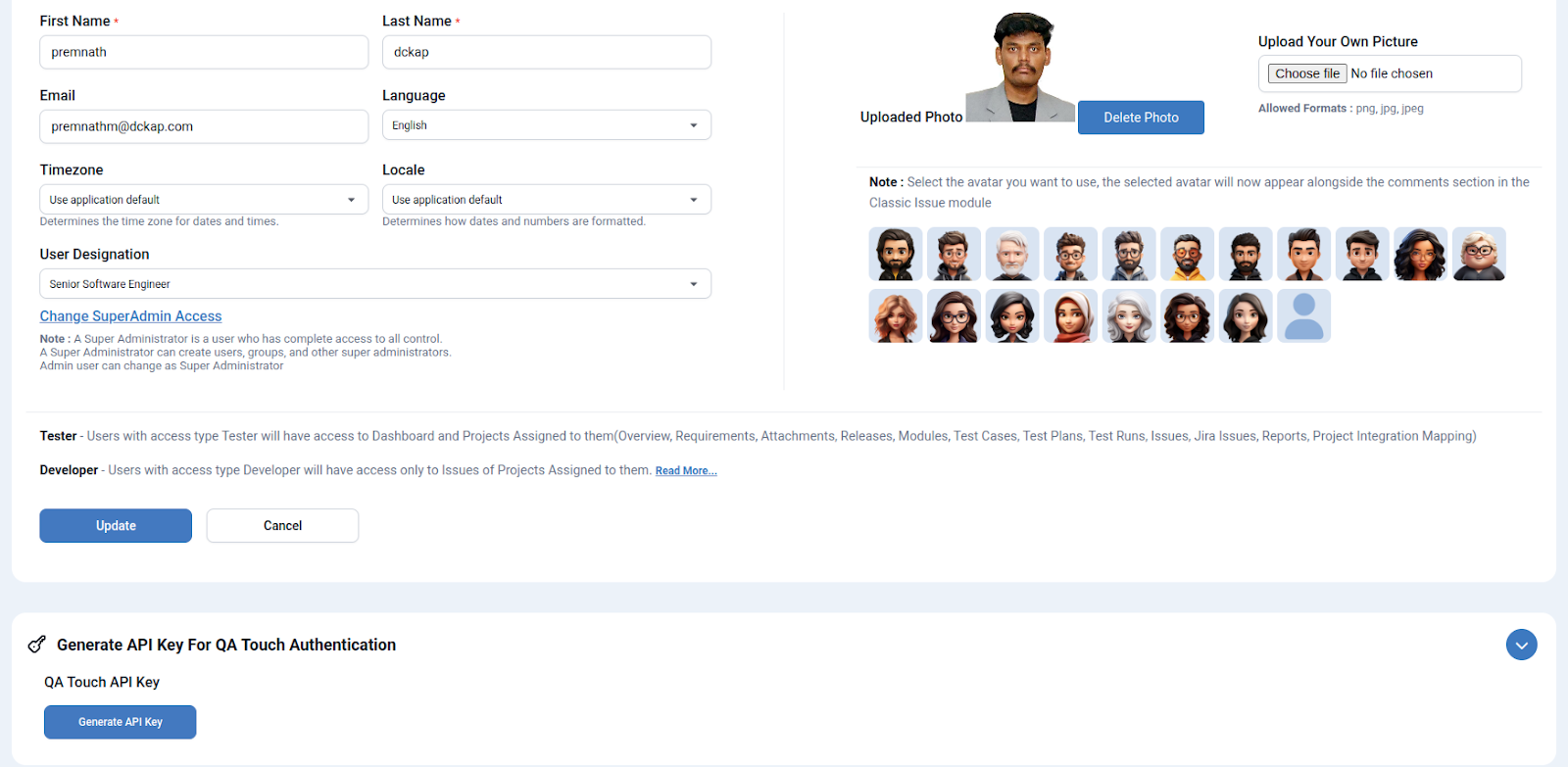
 Generate API Key
To use QA Touch Reporter, you will need to set up the following environment variables:
Ensure that your QA Touch API is enabled and generate your API keys. See https://doc.qatouch.com/#qa-touch-api
Generate API Key
To use QA Touch Reporter, you will need to set up the following environment variables:
Ensure that your QA Touch API is enabled and generate your API keys. See https://doc.qatouch.com/#qa-touch-api
Step 4: Configure Environment Variables
Create a .env file in your Playwright root directory: QATOUCH_DOMAIN=your-domain QATOUCH_API_TOKEN=your-api-token QATOUCH_PROJECT_KEY=your-project-key QATOUCH_TESTRUN_ID=your-test-run-idStep 5: Update Playwright Config
Modify your playwright.config.js:Final Step :
npx playwright test
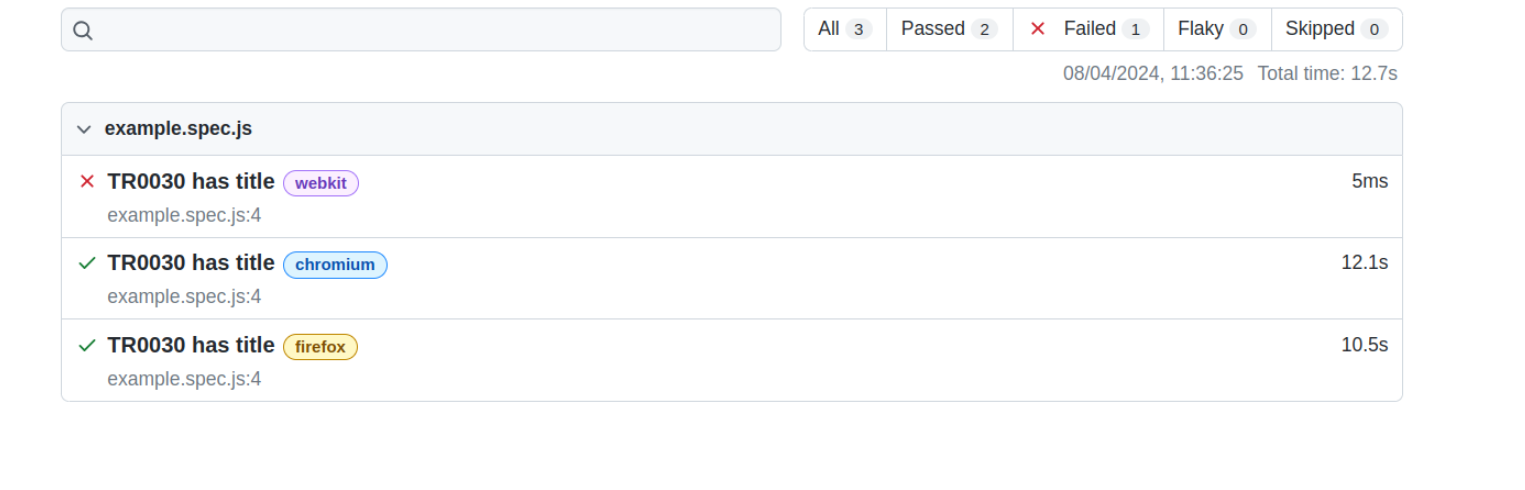
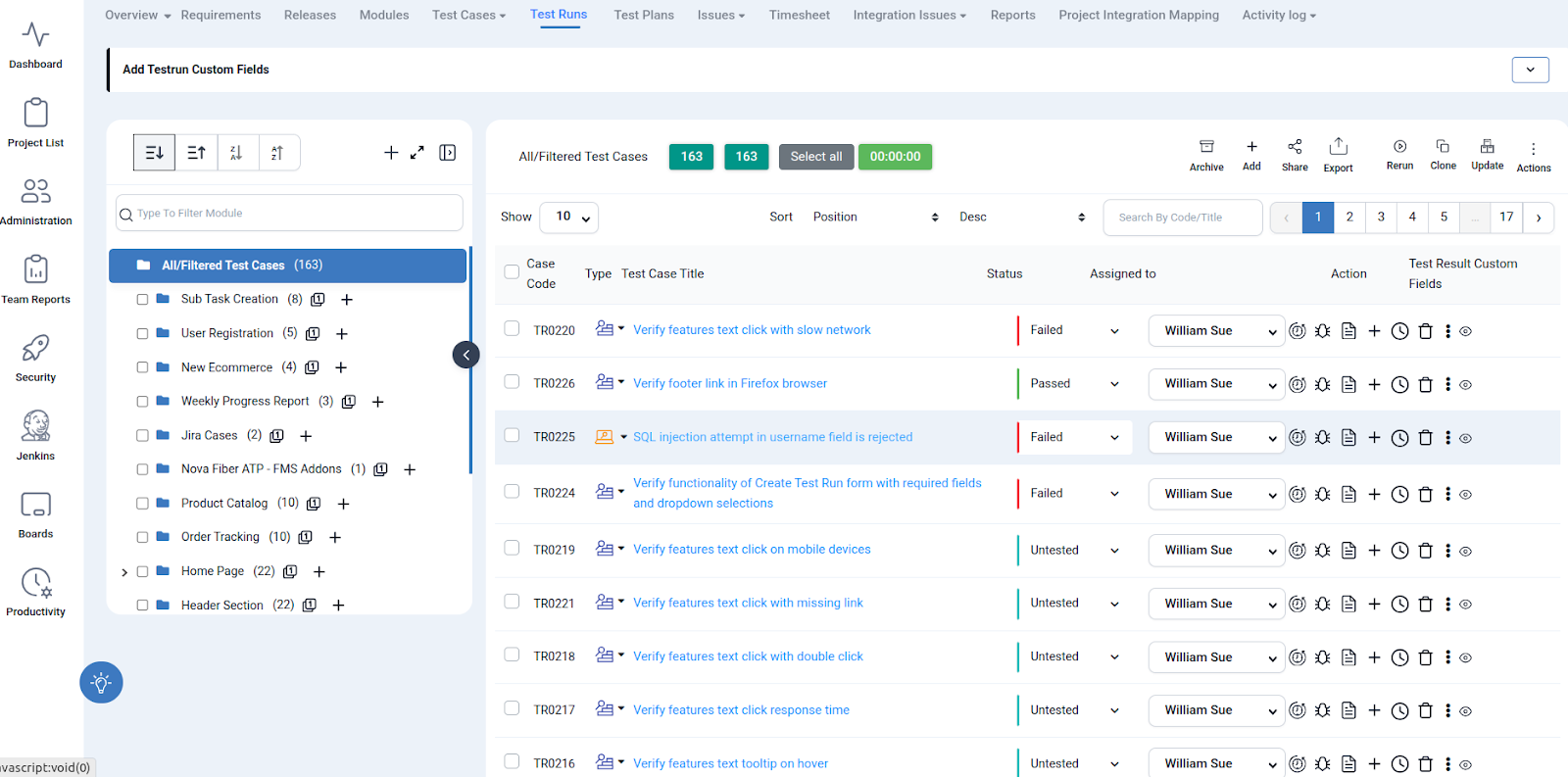
QA Touch Test Result Sync – Successfully
If you’re already using QA Touch + Playwright, upgrading to 2.0 will immediately enhance your testing workflow.Browser Different Result (WebKit, Chrome, Firefox): Captures and displays test execution results separately for each browser, enabling easy comparison of pass/fail status, errors, and behavior differences to quickly identify browser-specific issues and ensure consistent cross-browser functionality.
Attachment Sync: Automatically uploads and links Playwright-generated screenshots to the respective test cases in QA Touch, helping teams quickly debug failures with complete visual and execution evidence.
Time Spent: Records the execution time of each test case across different browsers, providing insights into performance variations, helping identify slow-running tests, and supporting optimization of overall test execution efficiency.
Ready to try it? Start upgrading your integration today and experience smarter test automation.