

In today’s digital landscape, protecting data is more critical than ever. We’re excited to announce that QA Touch now offers Two-Factor Authentication (2FA), also known as Multi-Factor Authentication (MFA). This powerful new feature adds an extra layer of security to your account, ensuring that only you can access your projects and data. In this blog, we’ll walk you through why 2FA is a game-changer for your security, how it works, and a simple step-by-step guide to enabling it on your QA Touch account. Protect your work and your team by taking this crucial step toward a more secure testing environment.
That’s why we are incredibly proud to announce the launch of our new Two-Factor Authentication (2FA) and Multi-Factor Authentication (MFA) feature within QA Touch. This powerful security upgrade is designed to add a crucial, second layer of defense to your account, ensuring that even if your password is stolen, your data remains safe. This blog will walk you through what 2FA is, why it’s a vital addition to your test management workflow, and how you can enable it in just a few simple steps.
What Exactly Is Two-Factor Authentication (2FA)?
At its core, Two-Factor Authentication is a security process that requires two distinct forms of identification before granting access to an account. Think of it as a two-key lock. One key is something like username and password. The second key is something you have OTP.
Most modern 2FA systems rely on a one-time password (OTP) Code.
- QA Touch login enter username and password
- After verified credentials enable, Send OTP option email will be trigger OTP Code
- We need to enter that code, and if both the password and the code are correct, you are granted to access.
How to enable MFA setting in QA Touch
Navigation :
Goto Administration -> Site Setting
- Log in to your account.
- Go to the Administration -> Site Setting
- Security Settings – Two-factor authentication (2FA) and multi-factor authentication (MFA) are both security measures
- Option to switch on/off Multi-Factor Authentication (MFA) 2FA
On – Multiple Login Verification before accessing an application
Off – Default Setting


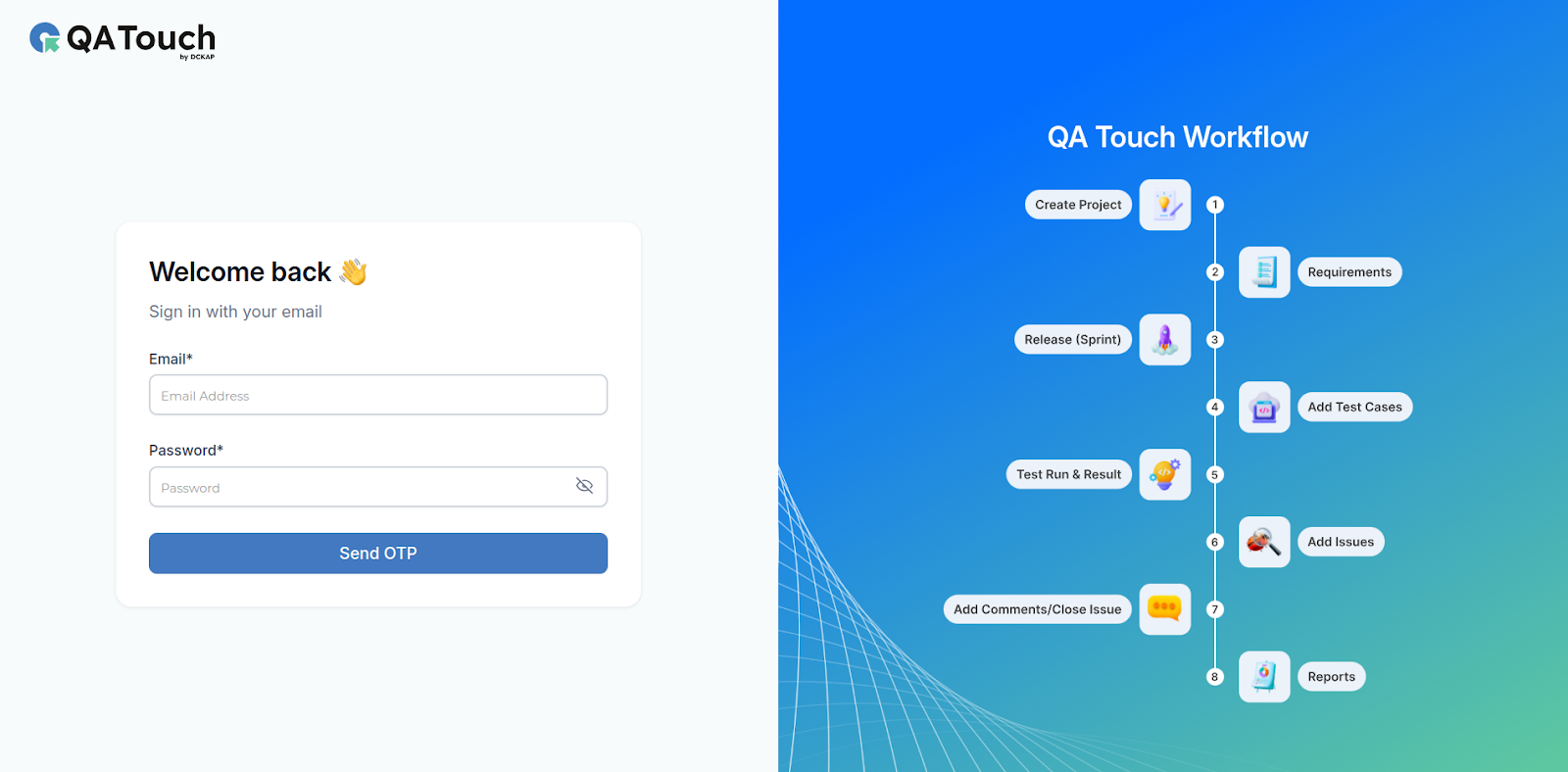
After MFA enabled Login Send OTP option available.
- Please enter login credentials after successful authentication, Send OTP section will be display
- After a successful login, the “Send OTP” section will appear
- An OTP (One-Time Password) will be sent to your registered email address.
- Copy the OTP from the email and paste it into the input field.
- Verify the code to be redirected to the project list.
Upon successful login, you’ll be prompted to verify your identity with a one-time password. The OTP is sent to your email and must be entered to access your project list.


Thanks for taking the time to read my blog content! I hope you found it helpful and insightful.