

We are thrilled to launch the new AI Test Parameter! 🎉 feature
As our community continues to grow, we want to ensure you have the best possible resources at your fingertips.
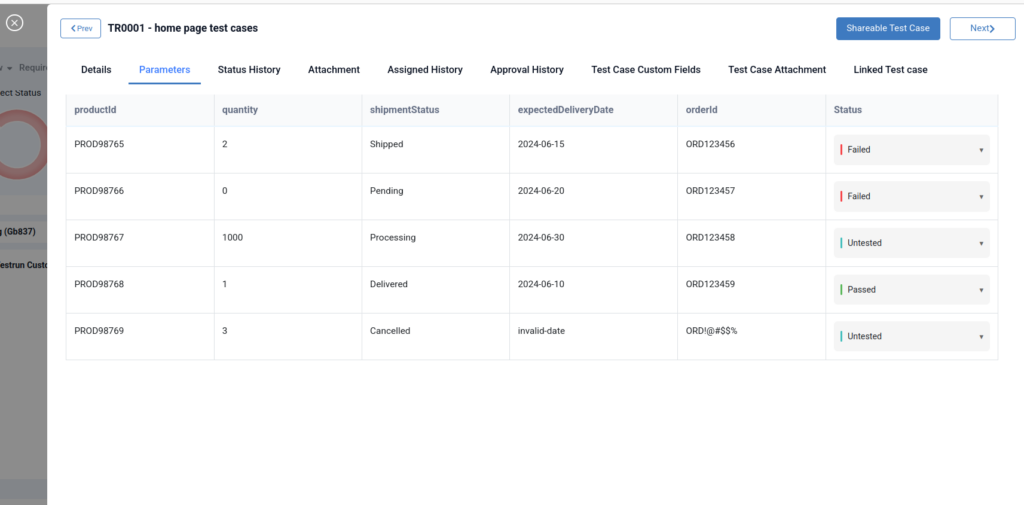
Test parameterization enables data-driven testing by executing a single test logic across multiple input values. This approach eliminates the need for redundant test cases, significantly reducing maintenance overhead while expanding functional coverage.
Data-Driven Testing (DDT) empowers teams to execute a single test scenario against thousands of unique datasets, eliminating the need for redundant code or manual duplication.
Login Systems: Validating large combinations of valid and invalid usernames and passwords
Examples:
Testing multiple credential combinations in login systems
Localized Applications: Ensuring correct rendering of currencies, date formats, and languages across different regions
Examples: Validating localization behavior across regions
Form Validations: Verifying that forms (such as checkout or registration) correctly handle various zip codes, address formats, and invalid inputs
Using parameters can increase the flexibility of your tests by enabling you to run the same test repeatedly with different data each time.
What is Test Parameterization?
At its core, test parameterization enables data-driven testing by executing a single test logic across multiple input values. Instead of hardcoding data into your scripts, you decouple the logic (the steps of the test) from the data (the inputs and expected results).
By adopting a data-driven approach, you shift from testing “one scenario” to testing “one behavior” across an infinite variety of conditions.
Without parameterization, testing a login page with ten different user roles requires ten separate scripts. With it, you have one script and a data table. This approach eliminates the need for redundant test cases, keeping your repository clean and organized.
Real-World Example: The Checkout Cart
Imagine testing an e-commerce checkout. You need to verify that the tax is calculated correctly for different regions:
- Logic: Add item to cart → Enter Zip Code → Verify Tax Amount.
- Data Set: * Input: 90210 | Expected Tax: 9.5%
- Input: 10001 | Expected Tax: 8.875%
- Input: SW1A 1AA | Expected Tax: 20%
By running the same logic against these diverse inputs, you ensure the system is robust across global markets with a single, elegant test script.
Let’s start with an example:
Suppose we need to validate the login on a website with a set of valid and invalid user names and passwords:
| Username | Password | Result | |
| admin | admin@gmail.com | 12345678 | Failed |
| peter | peter@gmail.com | a1P77~8uD?G6 | Passed |
| john | john@g.com | a1P77~8uD?G6 | Failed |
How to Use AI Test Case Parameters in QA Touch
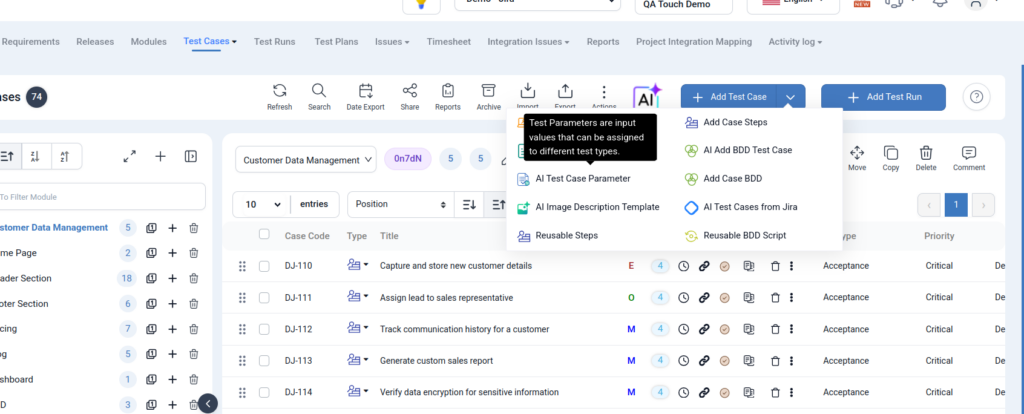
Step 1: Navigate to Test Cases
- Go to your Project Dashboard
- Click on Test Cases
Click on ➕ Add Test Case button

Step 2: Open Test Case Parameter Template
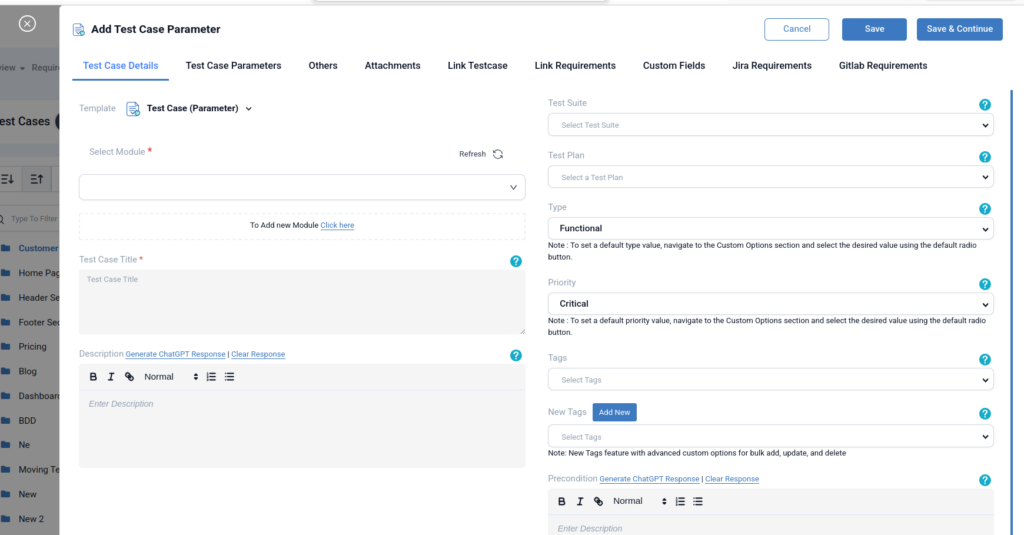
You’ll see the “Add Test Case Parameter” template screen with multiple tabs:
- Test Case Details
- Test Case Parameters ✅
- Attachments
- Custom Fields
- Integrations (Jira, GitLab, etc.)
Click on:👉 Test Case Parameters
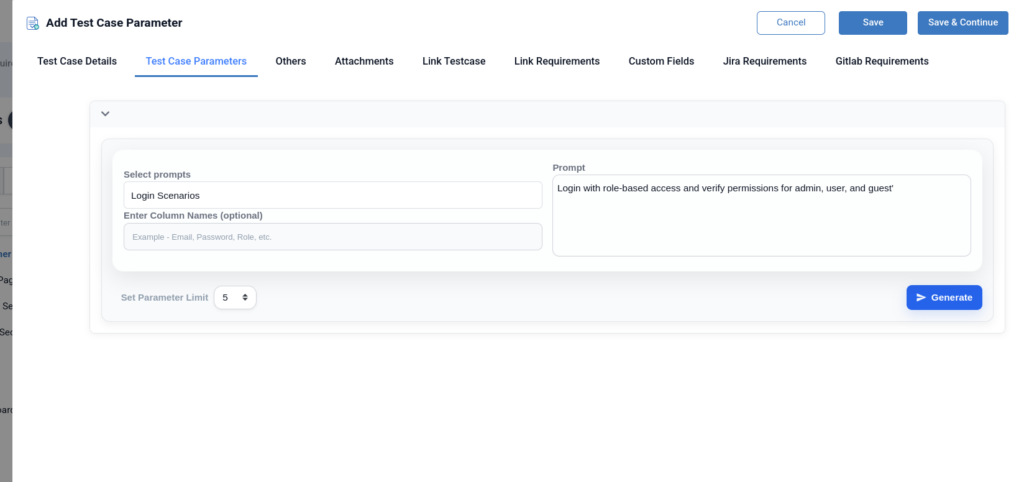
Step 3: Configure AI Prompt
Inside the Test Case Parameters tab:
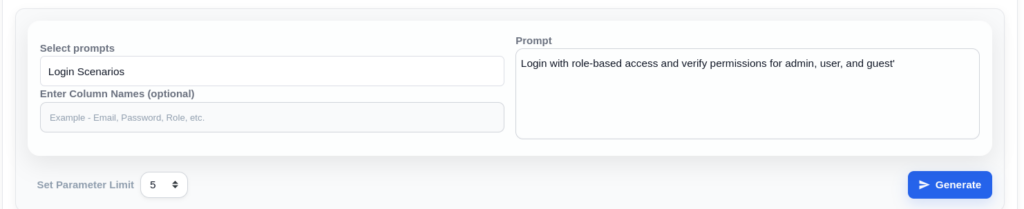
Step 4: Select Prompt Template
Choose a predefined scenario like:
- Login Scenarios
- Login OTP
- Ecommerce Scenario
- Discount Coupon
- Product Wishlist
- Signup Cases
👉 Example: Login Scenarios
Step 5: Enter Column Names (Optional)
Define input fields for test data:
Example:
Email, Password, Role
This helps structure your test data.
Step 6: Add Prompt Description
Provide clear instructions for AI:
Example:
Login with role-based access and verify permissions for admin, user, and guest
Step 7: Set Parameter Limit
Choose how many variations you want:
Example: 5 test data sets
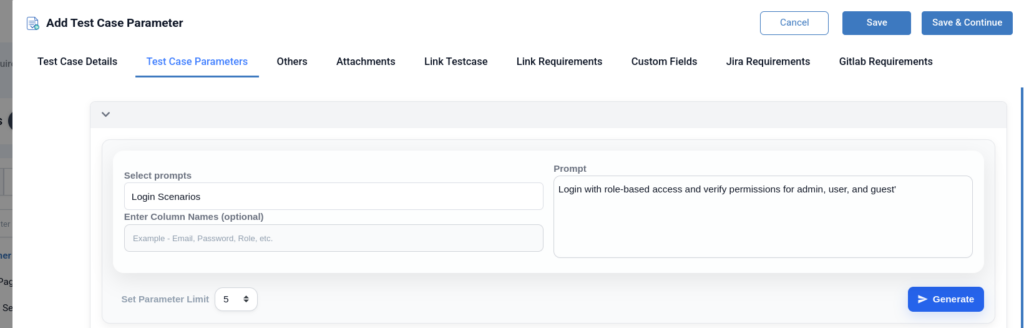
Generate Test Parameters
Click on:
👉 Generate
QA Touch AI will:
- Create multiple test combinations
- Structure input data
- Improve test coverage automatically
After clicking Generate, QA Touch AI starts processing your request.
You’ll see:
- ⏳ “Please wait, Parameters are generating…”
- A loading progress bar
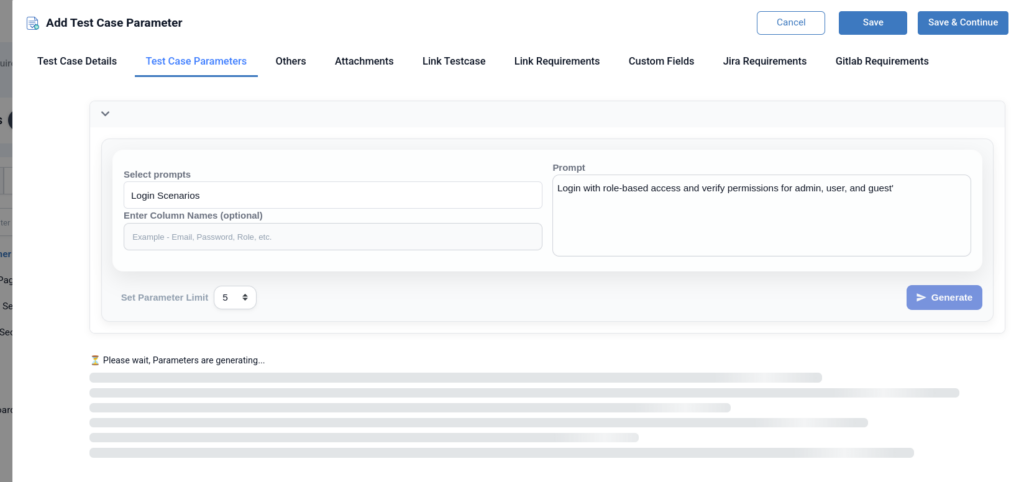
Review Generated Test Data
Once generation is complete, QA Touch automatically creates a parameter table.
Example Columns:
- username
- password
- role
- expected_access
- test_case_type
Example Generated Data:
| Username | Password | Role | Expected Access | Type |
| adminUser | Admin@1234 | admin | full_access | valid |
| normalUser | User@5678 | user | limited_access | valid |
| guestUser | Guest@0000 | guest | read_only_access | valid |
| adminUser | wrongPass | admin | access_denied | invalid |
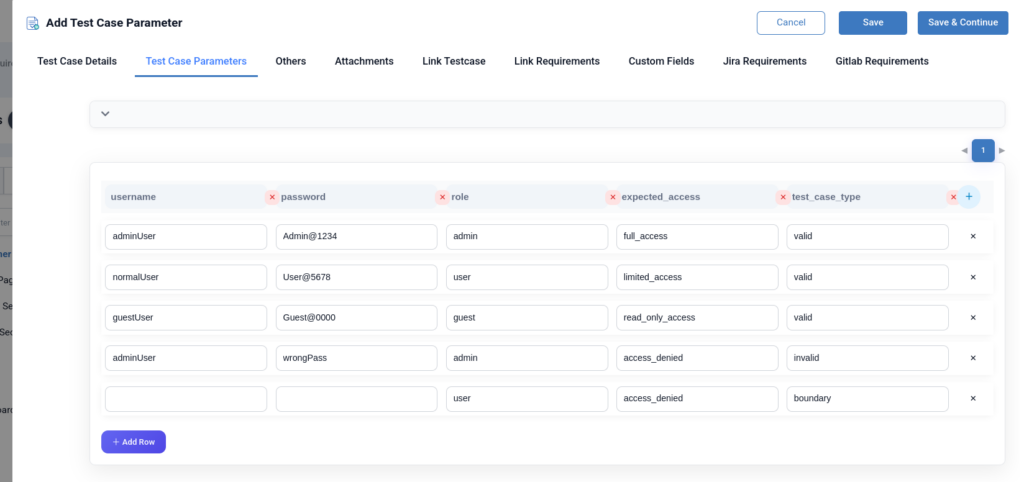
Edit or Customize Parameters
You have full control over the generated data:
You can:
- ✅ Edit any field manually
- ✅ Add new rows
- ✅ Delete unwanted rows
- ✅ Modify test scenarios
Click:
👉 + Add Row to create additional test data
Fill Test Case Details
Now switch to Test Case Details tab:
Fill required fields:
- Module
- Test Case Title
- Description (Use AI Generate if needed)
- Test Suite / Test Plan
- Priority & Tags
Click:
- Save → Save test case
- Save & Continue → Add more
Creating Test Runs in QA Touch
Efficient test management is the backbone of any successful QA process. Whether you are running a full regression suite or targeting specific features, knowing how to properly set up your Test Runs can save hours of manual effort.
In this guide, we’ll walk you through the essential steps to create Test Runs in QA Touch, including a “secret weapon” for handling large-scale data: The Queue.
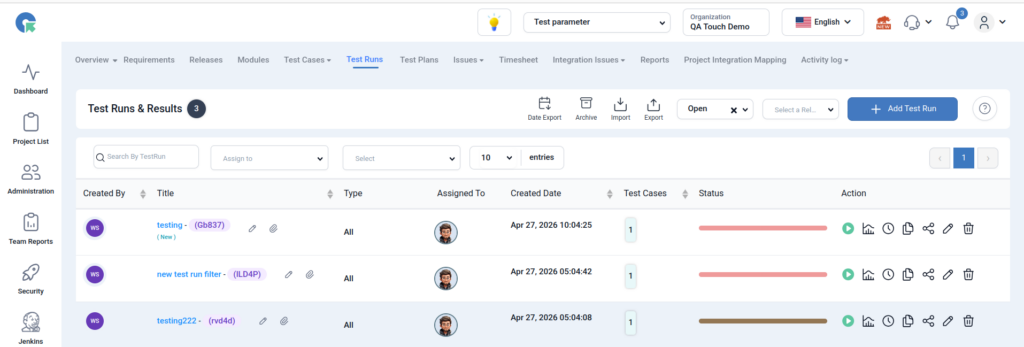
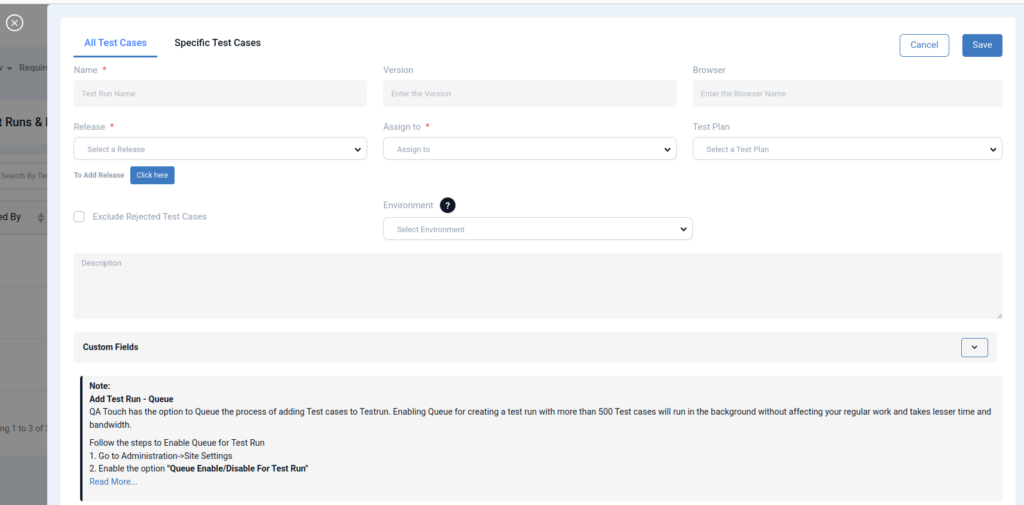
Test Run (All Test Cases)
If you need to execute a complete suite of tests, following these steps will get your environment ready in seconds:
- Navigate: From your dashboard, go to Project and select Test Runs.
- Initiate: Click the + Add Test Run button.
- Selection: Choose the All Test Cases option to include every case in the project.
- Details: Enter a descriptive Test Run Name, assign the appropriate User, and select the current Release.
Finalize: Click Save. Your full suite is now ready for execution!
High-Volume Testing: Using the Add Test Run Queue
Adding more than 500 test cases at once can be resource-intensive. QA Touch offers a Queue feature that processes these large batches in the background, ensuring your browser doesn’t freeze and your bandwidth remains stable.
How to Enable the Queue:
Before creating a massive test run, ensure the setting is toggled on:
- Go to Administration > Site Settings.
- Locate and enable the option: “Queue Enable/Disable For Test Run”.
Pro Tip: Once enabled, you can continue with your regular work while QA Touch handles the heavy lifting of importing test cases into your run in the background.
Adding Specific Test Cases
Sometimes, you only need to test a specific module or a set of bug fixes. In this scenario, use the Specific Test Cases option to keep your run lean and focused.
- Navigate: Go to Project > Test Runs and click + Add Test Run.
- Selection: Choose the Specific Test Cases option.
- Identify: Enter the Name, User, and Release details.
- Filter & Pick: Use the Filter option to drill down by priority, module, or type. Select only the test cases you need.
Save: Click Save to generate your targeted test run.
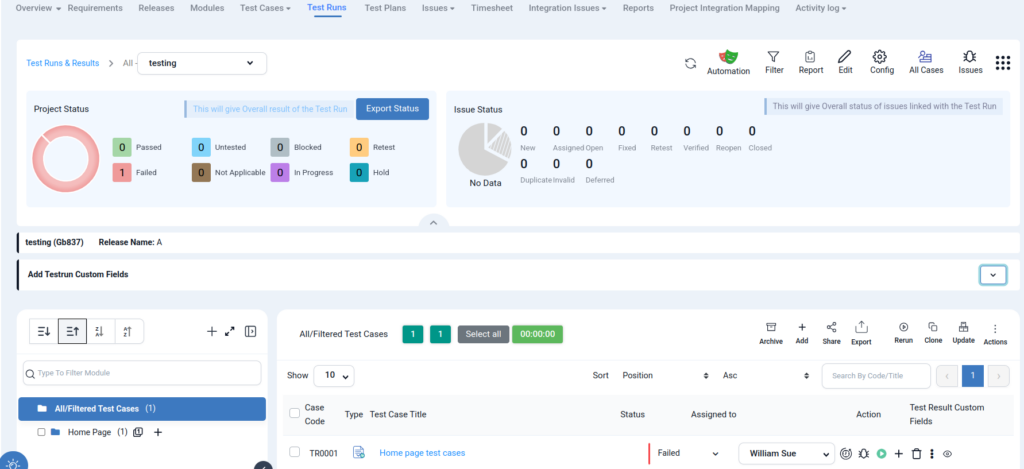
Test Runs & Result in QA Touch
Shareable Public Result
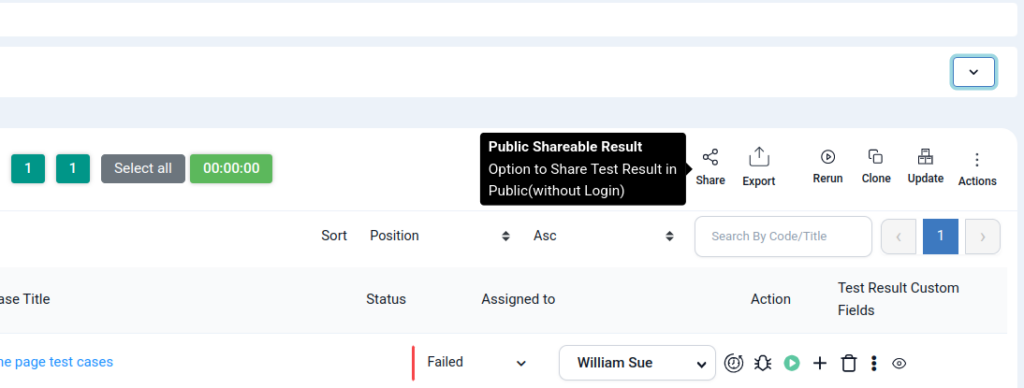
Enable public sharing of test execution summaries to keep stakeholders informed. These reports offer real-time visibility into quality metrics and coverage, segmented to highlight the data most critical to your audience. This transparency allows teams and stakeholders to monitor real-time coverage and quality, ensuring they stay aligned on the specific metrics that impact their roles.
Why Use AI Test Case Parameters?
- Faster test case creation
- Better test coverage
- Reduced manual effort
- Smart data-driven testing
- Ideal for role-based & input-based scenarios
AI Test Case Parameter feature transforms how QA and Dev teams create test scenarios. Instead of writing repetitive test data manually, you can now generate intelligent test variations instantly.
👉 Start using it today to boost productivity and improve quality faster than ever.