
KIRO Agentic IDE is an AI-first integrated development environment developed by AWS that shifts the focus from simple text-prompt coding to structured, autonomous software engineering.
Beyond “Vibe Coding”: Why AWS KIRO is the Next Evolution of AI IDEs
Enter KIRO Agentic IDE, a new AI-first development environment by AWS designed to handle full-scale software engineering, not just code completion.
What Makes KIRO Different?
It operates on two distinct wavelengths: Vibe Mode (for quick, fluid iterations) and Spec Mode (for highly accurate, structured production engineering).
One Agent, Every Surface: KIRO isn’t just an editor. Your custom configs, rules (steering files), and parameters sync seamlessly across the KIRO IDE, KIRO CLI, and a sandboxed cloud environment on KIRO Web.
Kiro IDE supports the Model Context Protocol (MCP), allowing developers and QA teams to connect AI assistants with external tools and services. By integrating QA Touch MCP with Kiro, you can bring test management capabilities directly into your development workflow and automate QA activities using natural-language prompts.
Follow the steps below to enable MCP and configure your MCP servers in Kiro.
Enable MCP Support in Kiro
Before configuring an MCP server, make sure MCP support is enabled in Kiro.
Steps
- Open the Kiro IDE.
- Open Settings.
- Search for MCP.
- Enable MCP support.
Kiro panel and navigate to the MCP section to manage your configured MCP servers.
Kiro also provides an Open MCP Config option directly from the MCP panel, making it easier to access and edit your MCP configuration.
Choose the MCP Configuration Level
Kiro supports two configuration levels for MCP servers:
Workspace-Level Configuration
The workspace configuration is stored in:
.kiro/settings/mcp.json
This configuration applies only to the current project or workspace.
Use workspace-level configuration when an MCP server is specific to a particular project or team workflow.
This configuration is available across your Kiro workspaces.
User-level configuration is useful for MCP servers that you regularly use across multiple projects, such as documentation, GitHub, or general-purpose development and QA tools.
Which Configuration Should You Use?
| Configuration | Location | Scope | Recommended For |
| Workspace | .kiro/settings/mcp.json | Current project | Project-specific MCP servers |
| User | ~/.kiro/settings/mcp.json | All workspaces | Commonly used MCP servers |
If both configurations are available, Kiro combines the configurations, with workspace-level settings taking precedence where applicable.
Configure QA Touch MCP
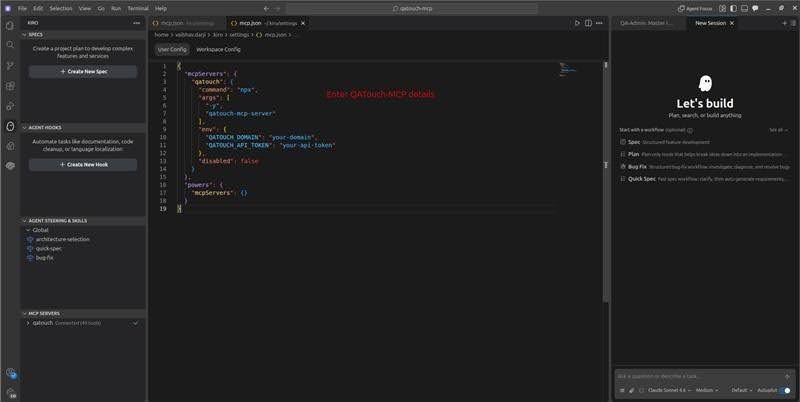
Once MCP is enabled, add the QA Touch MCP server to your Kiro MCP configuration.
Open the appropriate mcp.json file and add the QA Touch MCP server configuration provided in the QA Touch MCP setup documentation.
Make sure you configure the required:
- QA Touch MCP server
- QA Touch authentication/API credentials
- Server command or connection details
- Required environment variables
Security Tip: Never commit API keys, access tokens, or other sensitive credentials to a public Git repository. Use secure environment variables or your organization’s approved secret-management approach.
Open the MCP Configuration File
There are two convenient ways to open the configuration.
Using the Command Palette
Open the command palette:
- macOS:Cmd + Shift + P
- Windows/Linux:Ctrl + Shift + P
Search for MCP and select either:
- Kiro: Open workspace MCP config (JSON)
- Kiro: Open user MCP config (JSON)
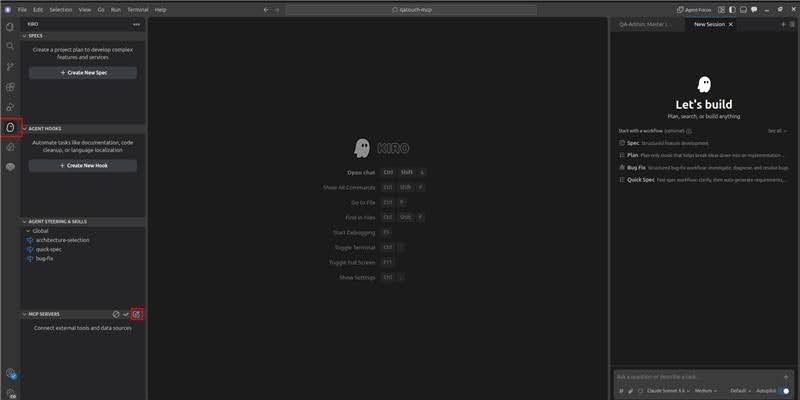
Using the Kiro Panel
Alternatively:
1. Open the Kiro panel.
2. Find the MCP Servers section.
3. Select the Open MCP Config icon.
Kiro will open the appropriate mcp.json file for editing.
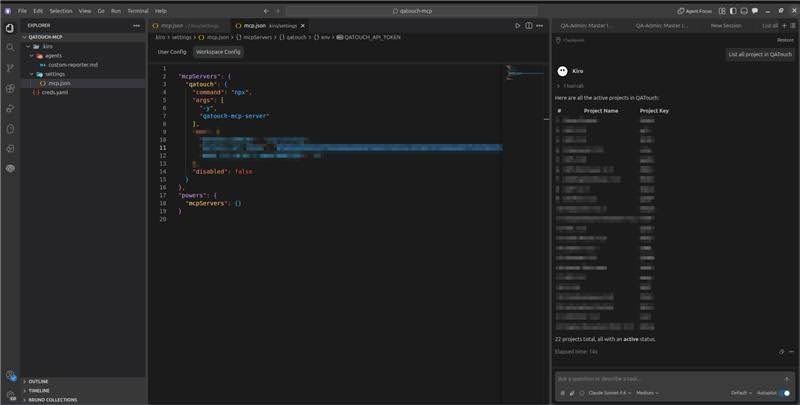
Add the QATouch MCP Server
{
  "mcpServers": {
    "qatouch": {
      "command": "npx",
      "args": [
        "-y",
        "qatouch-mcp-server"
      ],
      "env": {
        "QATOUCH_DOMAIN": "your-domain",
        "QATOUCH_API_TOKEN": "your-api-token"
      },
      "disabled": false
    }
  },
  "powers": {
    "mcpServers": {}
  }
}
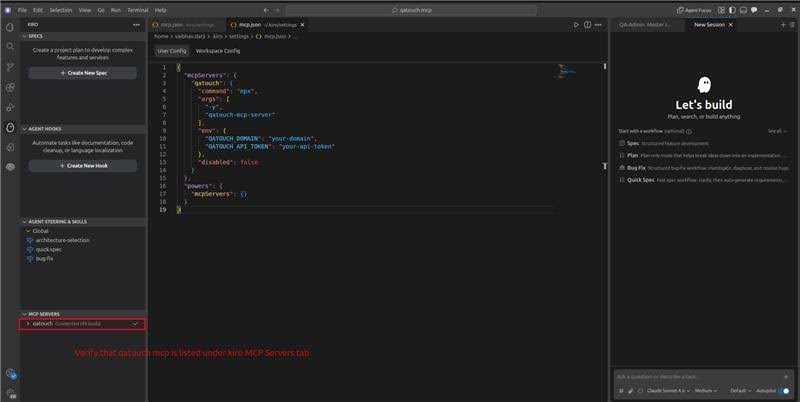
Verify the QA Touch MCP Connection
After saving the configuration:
- Open the Kiro MCP panel.
- Locate the QA Touch MCP server.
- Verify that the server is connected and running.
- Check that the available QA Touch tools are displayed.
If the server is not connected, review the MCP configuration and verify that the required credentials and connection details are correct.
Start Using QA Touch with Kiro
Once QA Touch MCP is connected, you can interact with your QA Touch workspace directly through Kiro using natural-language instructions.
For example:
- Create test cases for this user story in QA Touch.
- Show me the test cases related to this feature.
- Create a test run for the latest test cases.
- Update the test execution results based on the automation results.
- Show me the failed test cases from the latest test run.
This enables developers and QA engineers to reduce repetitive manual work and manage testing activities directly from their development environment.
Automate the End-to-End QA Workflow
With Kiro + QA Touch MCP, teams can build an AI-assisted workflow across the software development lifecycle:
Requirement → Test Case Generation → Test Execution → Result Update → Defect Management → Release Readiness
Instead of manually switching between development and test management tools, the AI assistant can help coordinate these activities through MCP.
Why Use QA Touch MCP with Kiro?
- Reduce repetitive QA activities.
- Generate test cases faster.
- Access QA Touch directly from the development environment.
- Automate test management workflows.
- Improve traceability between development and testing.
- Enable AI-assisted QA workflows using natural-language commands.
Configuring MCP in Kiro is primarily about creating an mcp.json file and defining how Kiro should connect to each MCP server. Kiro supports both local and remote servers, environment variables, tool approval controls, disabled tools, workspace/user scopes, and agent-specific MCP configurations.
For a typical project, the simplest workflow is:
Enable MCP → Open mcp.json → Add the server → Configure credentials → Save → Verify the server → Use its tools in Kiro.
The important part is choosing the right configuration scope. Use .kiro/settings/mcp.json for project-specific servers and ~/.kiro/settings/mcp.json for servers you want available across projects.