
API testing often starts with a long list of endpoints, request methods, parameters, and expected responses. Creating test cases for each endpoint manually can take a lot of time, especially when an API has many documented endpoints. AI-powered test generation, you can move from manual test case creation to faster and smarter API testing.
With QA Touch PostMan/Swagger AI Test Case, you can use your API specification to generate test cases faster and reduce repetitive manual work.
Import your Swagger/OpenAPI JSON or YAML file into QA Touch, and the platform can generate test cases and basic collections for the documented API endpoints.
How to Create API Test Cases?
Creating effective API test cases means checking different parts of an API request and response. You need to validate the request payload, response data, HTTP status codes, headers, authentication, and security rules.
Unlike UI testing, API testing mainly focuses on data, business logic, and communication between different services. Writing all these test cases manually can take a lot of time and may cause important scenarios to be missed.
Why Generate API Test Cases with AI?
When API documentation contains many endpoints, manually creating test cases can become repetitive.
For example, an API specification may contain:
- GET endpoints
- POST endpoints
- PUT endpoints
- DELETE endpoints
- Request parameters
- Request bodies
- API paths and other documented details
Instead of creating a test case for each endpoint manually, QA teams can use the API specification as the starting point for test case generation.
This helps teams:
- Reduce manual test case writing
- Create API test cases faster
- Get a starting point for API validation
- Keep test cases aligned with documented API endpoints
- Spend more time reviewing and improving test coverage
Where to Find PostMan/Swagger AI Test Case in QA Touch?
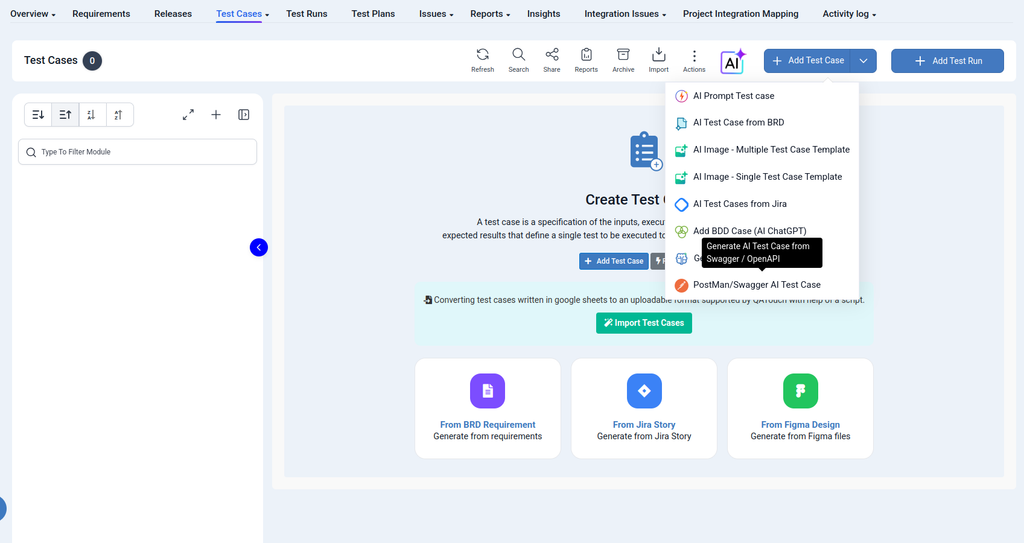
Start by opening the Test Cases section of your QA Touch project.
From the Test Cases page, click the AI option in the top toolbar.
The AI menu provides several options for generating test cases, including:
- AI Prompt Test Case
- AI Test Case from BRD
- AI Image – Multiple Test Case Template
- AI Image – Single Test Case Template
- AI Test Cases from Jira
- Add BDD Case (AI ChatGPT)
- PostMan/Swagger AI Test Case
For API test case generation, select PostMan/Swagger AI Test Case.
QA Touch Insights lets you create test cases automatically from your Postman collection or Swagger/OpenAPI file. Instead of writing every test case by hand, you can upload your API document and let AI do the first draft for you. This guide walks you through the steps.
How to Generate Test Cases from Swagger/OpenAPI
Step 1: Open the Test Cases section
Go to your QA Touch project and open Test Cases.
The Test Cases page provides the options for creating test cases and accessing AI-powered test case generation.
Step 2: Open the AI menu
Click the AI icon in the top toolbar.
A menu will appear with the available AI test case generation options.
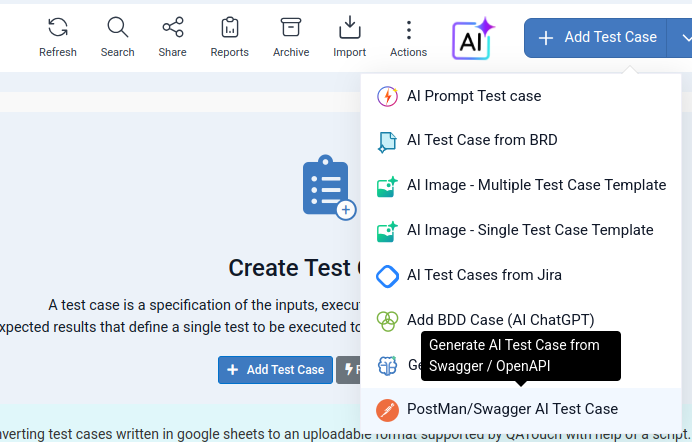
Step 3: Select PostMan/Swagger AI Test Case
From the AI menu, select PostMan/Swagger AI Test Case.
This option is specifically available for generating test cases from API documentation.
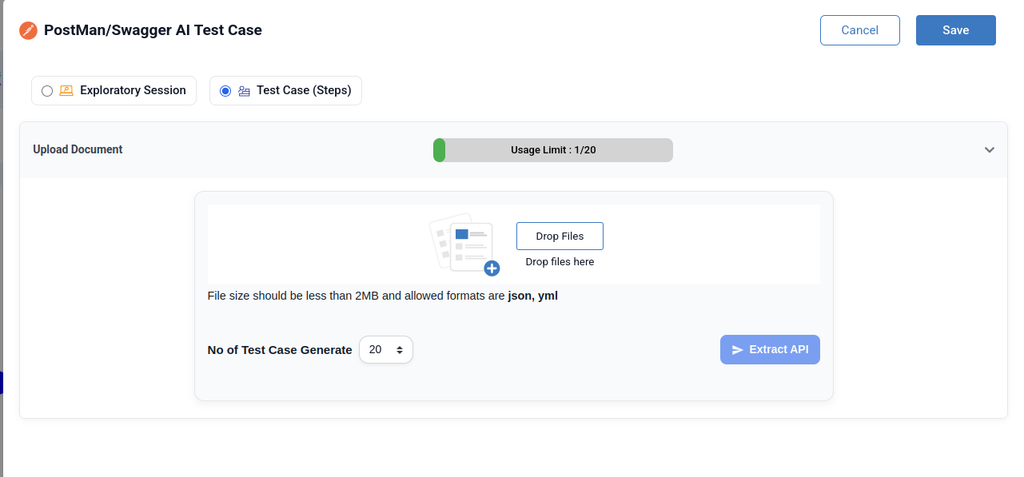
Go to the PostMan/Swagger AI Test Case screen. At the top, you will see two options:
- Exploratory Session
- Test Case (Steps)
Select Test Case (Steps) if you want AI to generate a full set of test cases with clear steps and expected results.
Step 4: Import your API specification
Import your Swagger/OpenAPI JSON or YAML file into QA Touch.
Your API specification provides the documented endpoints that QA Touch can use as the basis for generating test cases.
Upload Your Swagger or Postman File
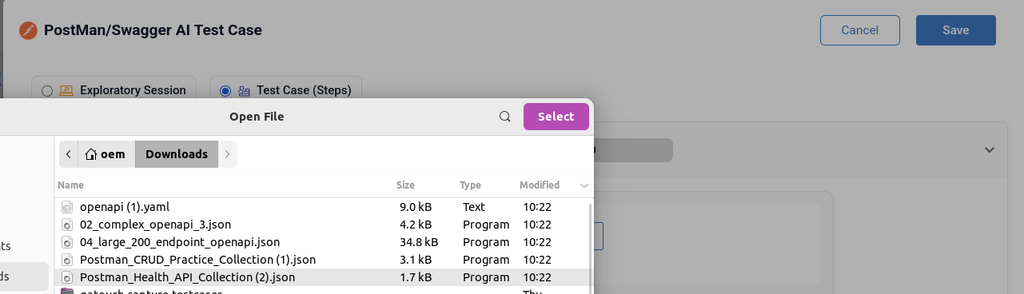
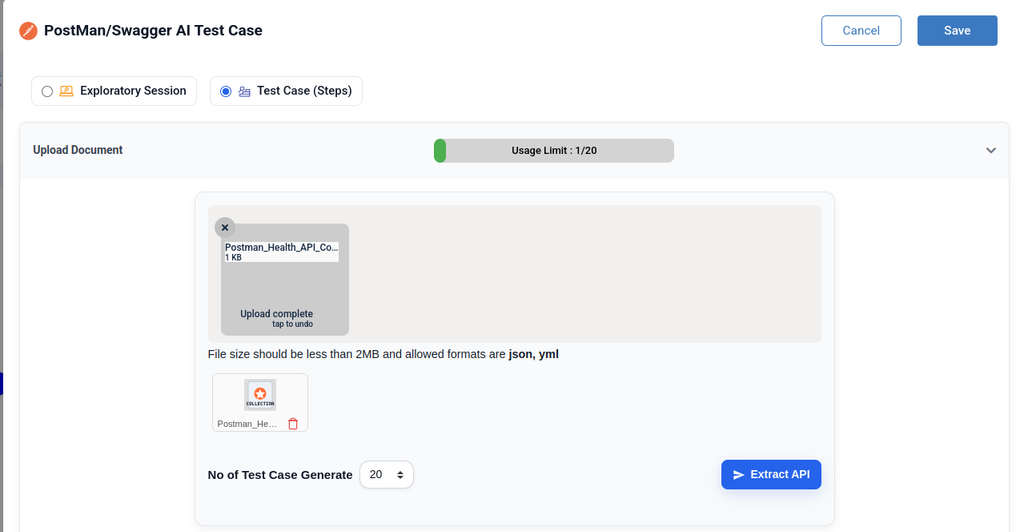
Click Upload Document to open the upload section. Choose your Swagger/OpenAPI file or Postman collection from your computer.
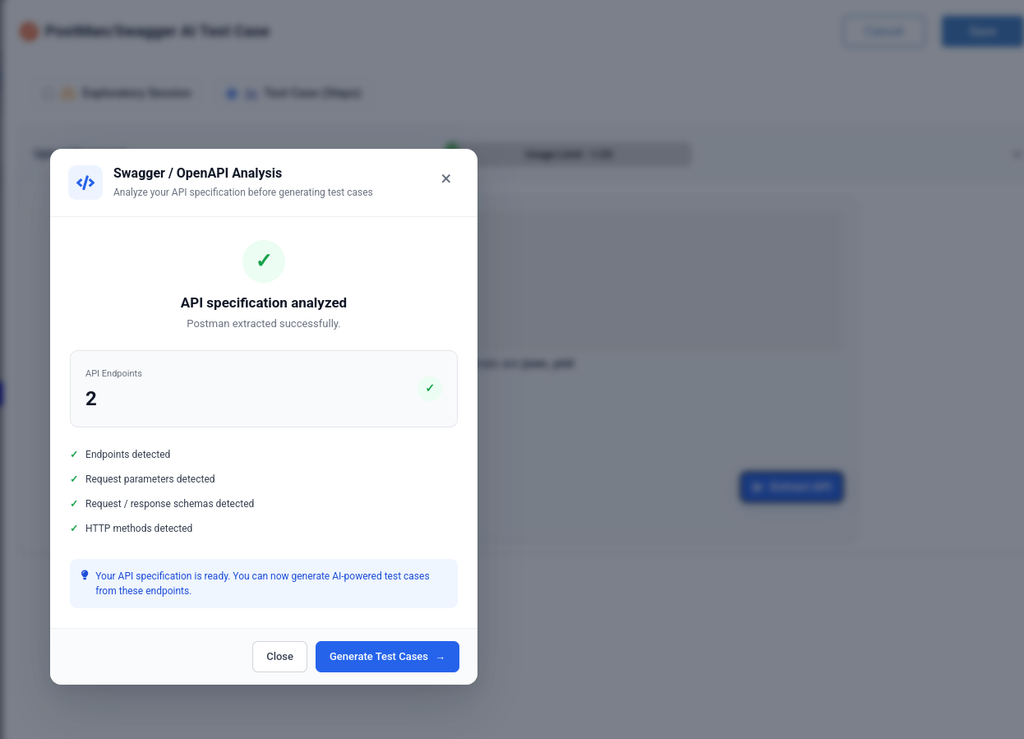
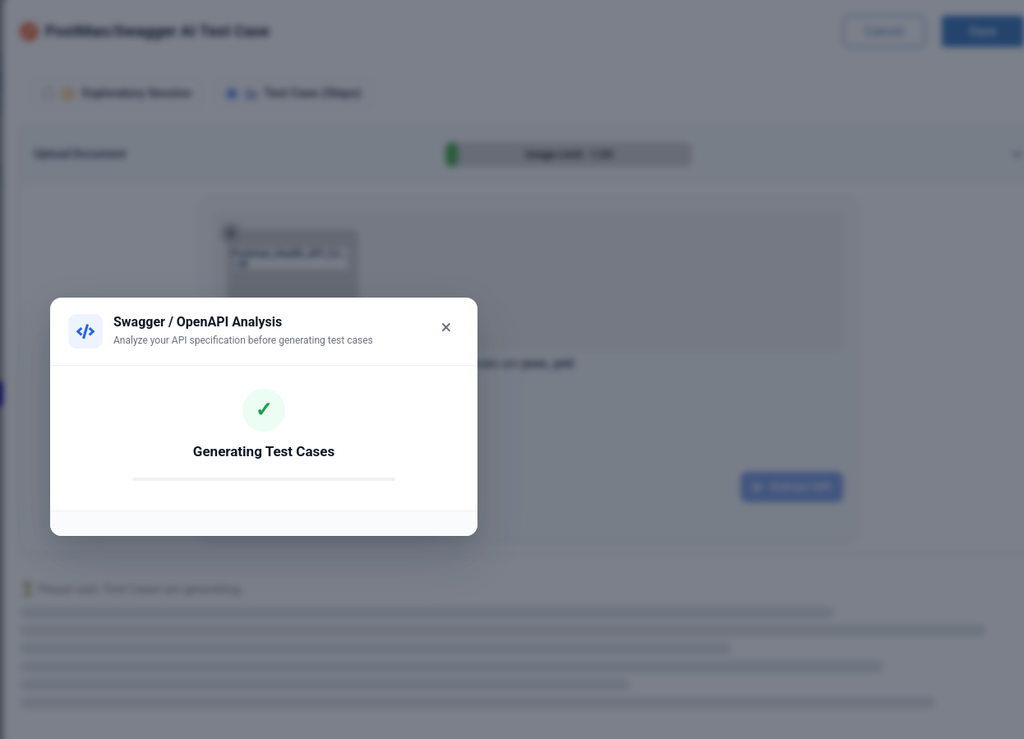
Once the file is uploaded, a popup titled Swagger / OpenAPI Analysis appears. This box tells you that the tool is reading your API specification before it starts creating test cases. You will see a message like:
Generating Test Cases
Step 5: Generate the test cases
Once the API specification is imported, QA Touch generates test cases based on the documented endpoints.
This gives your team a starting set of API test cases without requiring every test case to be written manually.
QA teams can then review the generated test cases and make any project-specific changes needed before execution.
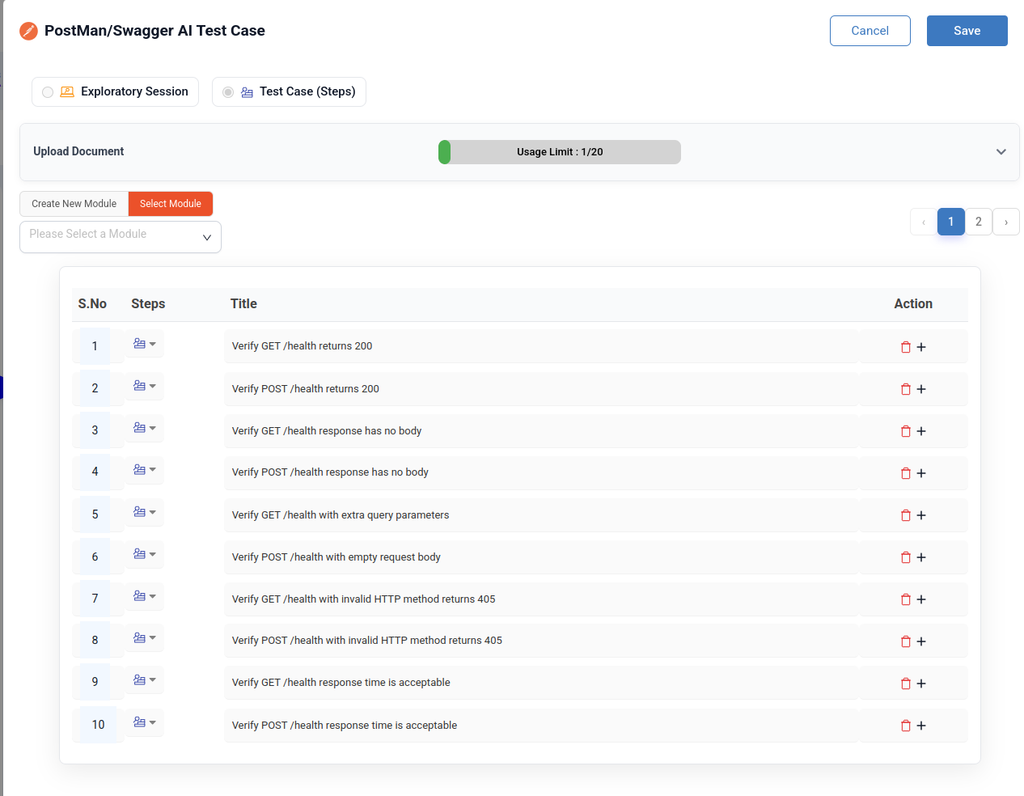
Always double-check the AI-generated steps and expected results before saving. AI gives you a strong starting point, but a quick human review helps catch anything specific to your project.
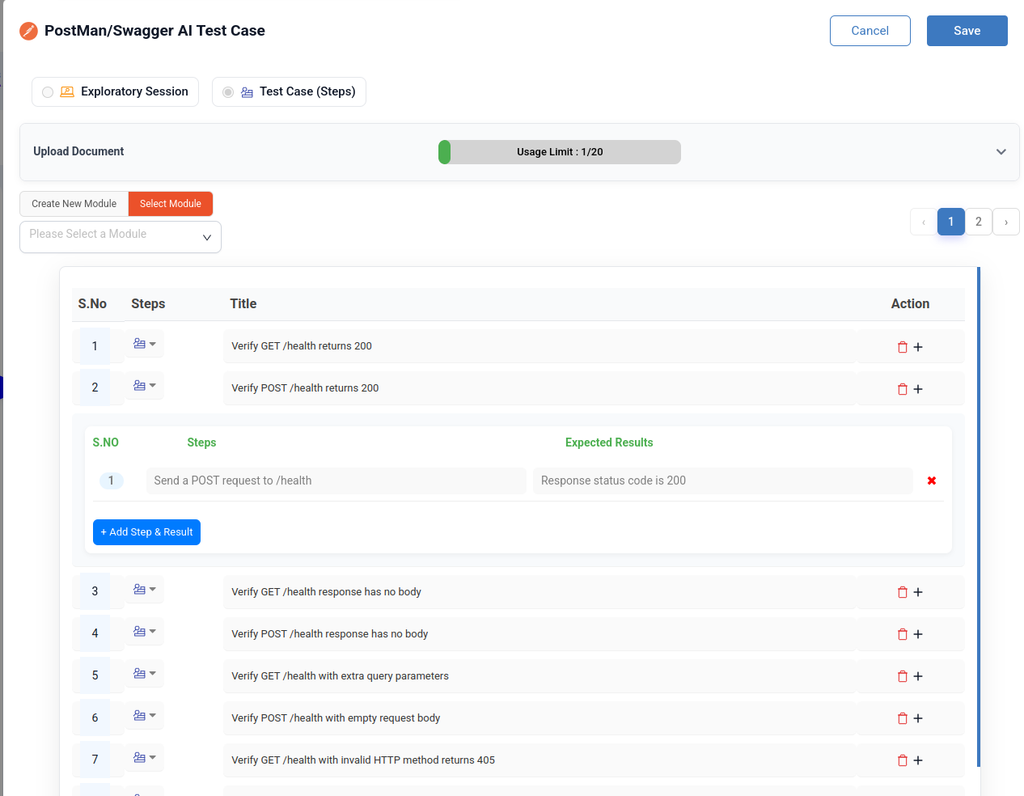
Save Your Test Cases
Once you are happy with the generated test cases, click Save in the top right corner. This saves all the test cases into the module you selected earlier.
If you want to discard the changes instead, click Cancel.
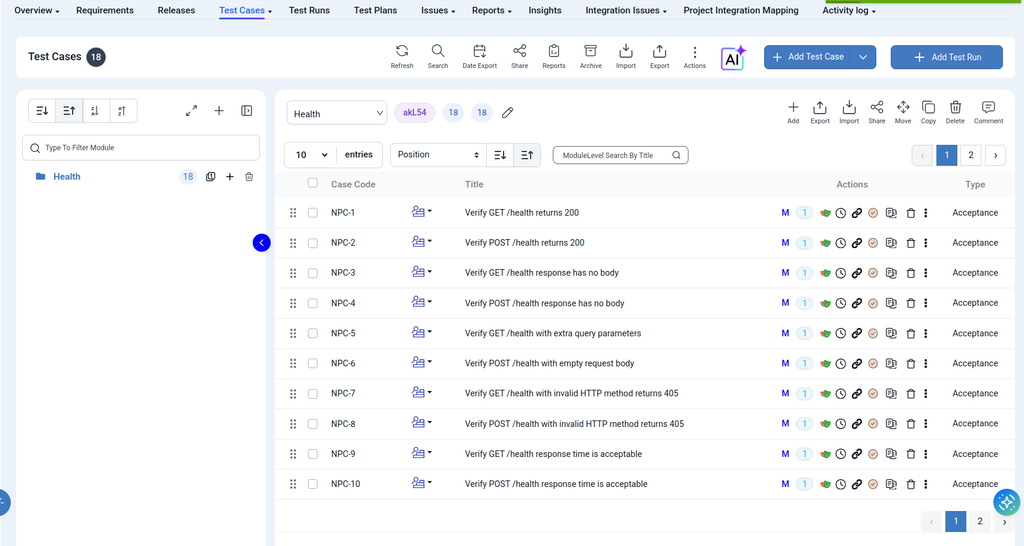
Imported Test Cases Successfully. With these steps, you can turn any Postman collection or Swagger file into a ready-to-use set of test cases in just a few clicks.
Generate Test Cases Faster from API Documentation
The Test Cases page also provides AI-based options such as From BRD Requirement, From Jira Story, and From Figma Design.
For API testing, the PostMan/Swagger AI Test Case option provides a direct way to use your API documentation as the input for test case generation.
This is useful when your development team already maintains API specifications and your QA team wants to quickly turn that documentation into test cases.
Swagger/OpenAPI specification → Import into QA Touch → Generate AI test cases → Review → Execute
Instead of starting with a blank Test Cases page, your API documentation becomes the starting point for your testing workflow.
Writing API test cases manually for every endpoint can be time-consuming. QA Touch PostMan/Swagger AI Test Case helps simplify this process by allowing teams to generate test cases from their existing Swagger/OpenAPI documentation.
Import your JSON or YAML API specification, generate the test cases, review them, and continue with your API testing workflow in QA Touch.
Turn your API documentation into a faster starting point for API testing with QA Touch.