
Creating manual test cases for mobile applications can take time. QA engineers need to explore the application, perform different actions, document each step, and write the expected results.
What if you could capture a user workflow and use AI to generate test cases from it?
With the QA Touch Android-MCP Capture Case Skill, you can record workflows on an Android emulator or connected Android device and generate manual test cases using Claude Desktop and Android-MCP.
Instead of writing every test case from scratch, you can perform a workflow, stop the recording, and let the skill generate test cases for QA Touch.
In this blog, we will explain how to set up Android-MCP, record an Android workflow, generate test cases, and bring them into QA Touch.
What is Android-MCP in Claude Desktop?
Android-MCP is an MCP server that allows Claude Desktop to communicate with an Android emulator or connected Android device.
What is the QA Touch Android-MCP Capture Case Skill?
It is a custom Claude Skill that records Android workflows and generates manual test cases for QA Touch.
What Is Android-MCP Test Case Generation?
Android-MCP connects Claude Desktop to an Android emulator or connected device. The QA Touch Capture Case Skill uses the recorded workflow to generate manual test cases.
The workflow looks like this:
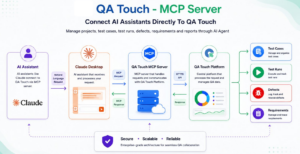
Android Device → Android-MCP → Claude Desktop → AI Test Case Generation → QA Touch
For example, you can open a login page, enter test credentials, submit the form, and observe the result. The skill uses the recorded workflow to generate test cases that you can review and add to QA Touch.
What Do You Need?
Before starting, make sure you have:
- Python 3.13
- UV package manager
- Android Studio
- Android SDK and Android Debug Bridge (ADB)
- A configured Android emulator or connected Android device
- Claude Desktop
- Android-MCP configured in Claude Desktop
- QA Touch Android-MCP Capture Case Skill
- QA Touch API Token and domain
If you need detailed installation instructions, follow the official QA Touch Android-MCP tutorial.
Step 1: Set Up Your Android Emulator
First, install Android Studio and open Device Manager.
Create an Android virtual device, select a device model and system image, and start the emulator.
Wait until the Android home screen appears.
Next, open PowerShell and verify that the emulator is connected using ADB.
Run:
adb devicesIf ADB is not available in your system PATH, use the full path to the ADB executable inside your Android SDK’s platform-tools directory.
You should see your emulator listed with the status device.
If the emulator appears as offline or is missing, resolve the connection before continuing.
Step 2: Configure Android-MCP in Claude Desktop
Open Claude Desktop and access its MCP server settings and configuration file.
Add the Android-MCP server configuration according to the installation instructions.
Example configuration:
{
  "mcpServers": {
    "android-mcp": {
      "command": "uvx",
      "args": [
        "--python",
        "3.13",
        "android-mcp"
      ]
    }
  }
}
Save the configuration and restart Claude Desktop if required.
Check the MCP server status to confirm that Android-MCP starts without errors. If you already have other MCP servers configured, preserve their existing entries.
Step 3: Download the QA Touch Android-MCP Skill
Download the mcpandroid-qatouch-capture-case skill from the QA Touch GitHub repository.
Download the QA Touch Android-MCP Capture Case Skill
In Claude, open Customize → Skills → Add → Upload Skill. Upload the downloaded skill and enable it.
The skill is now available for capturing workflows and generating QA Touch test cases.
Step 4: Start Recording an Android Workflow
Open Claude Desktop and invoke the skill with the target application and the START command.
For example:
/mcpandroid-qatouch-capture-case https://automationexercise.com/ STARTFollow the skill’s instructions and select the connected emulator if requested.
Now perform the workflow you want to document.
For example, a login workflow might include:
- Open the application or website.
- Navigate to the login page.
- Enter the test username and password.
- Submit the login form.
- Observe the result.
- Continue to another page if required.
Perform only the actions you want to include in the test scenario.
Step 5: Stop Recording and Generate Test Cases
After completing the workflow, type:
STOPWait for Claude to finish processing the recording and generating the test cases.
Review the generated content to make sure the steps match the actual workflow and that the expected results are correct.
AI-generated test cases should always be reviewed before they are used for formal testing.
Important: Use test accounts and non-sensitive data. Do not use real customer credentials or sensitive production information.
Step 6: Import Test Cases into QA Touch
You can bring the generated test cases into QA Touch in two ways.
Option 1: Import Using CSV
- Generate the test cases as a CSV file.
- Review the test case content and CSV column format.
- Import the file using the supported QA Touch test case import process.
- Verify that the test cases appear correctly in your project.
Option 2: Create Test Cases Directly
If your QA Touch integration is configured, you can request direct creation of the generated test cases.
- Confirm the correct QA Touch project and module.
- Request direct test case creation through the integration.
- Verify the created test cases and their IDs in QA Touch.
Remember that generating a CSV does not automatically mean the test cases have been added to QA Touch. Always verify the result.
Step 7: Add Test Cases to a Test Run
Once the test cases are available in QA Touch, add them to a Test Run.
- Create a Test Run and give it a suitable name.
- Add the generated test cases.
- Assign the Test Run to a team member.
- Verify that all required test cases are included.
- Execute the test cases and record the results, such as Passed or Failed.
This helps your team move from capturing a workflow to managing and executing the resulting test cases.
Benefits of Android-MCP Test Case Generation
Less manual documentation: Capture a workflow instead of writing every step from scratch.
Faster test case creation: Turn recorded user journeys into a starting set of manual test cases.
Practical workflow coverage: Base test cases on actions performed on an Android emulator or connected device.
Centralized test management: Import the generated test cases into QA Touch or create them directly through the configured integration.
A more efficient testing workflow: Move from workflow capture to test case review, Test Run creation, and execution.
Watch the Video
Frequently Asked Questions
Do I need an Android emulator?
You can use a configured Android emulator or a connected Android device, provided Android-MCP can access it.
Can I execute the generated test cases?
Yes. After adding the test cases to a QA Touch Test Run, you can execute them through the supported Claude workflow and record their results.
What should I do if Claude cannot detect my Android device?
Check that the emulator is running, verify its connection using adb devices, confirm that its status is device, and check the Android-MCP server status.
Conclusion
Generating manual test cases from Android workflows does not have to be a completely manual process.
With the QA Touch Android-MCP Capture Case Skill, Claude Desktop can capture a user workflow and generate test cases that you can review, import into QA Touch, and add to a Test Run.
Whether you are testing a login flow or exploring another application workflow, this approach helps reduce repetitive documentation and makes it easier to manage test cases in one place.
Ready to try it?
Download the QA Touch Android-MCP Capture Case Skill and follow the complete setup tutorial.