
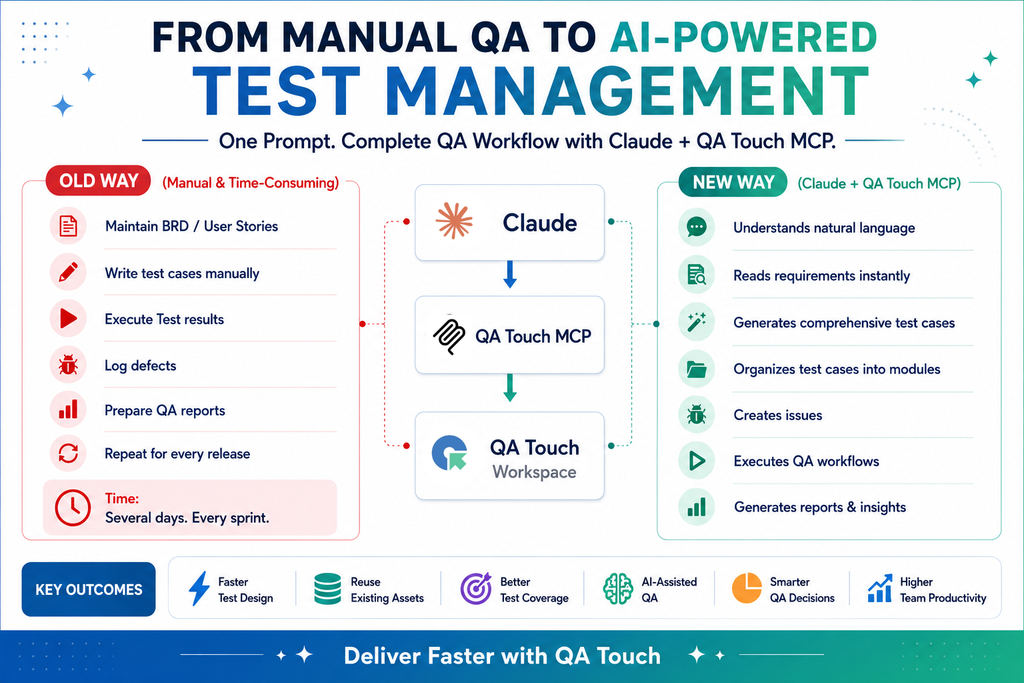
An AI test management platform with MCP is a tool for managing software testing that exposes its functions to AI assistants through the Model Context Protocol, so you can operate it by conversation instead of only through its UI.
- Test management platform: the system where QA teams keep test cases, organize them into suites, plan and execute test runs, record results, log defects, and view reports.
- AI capabilities: features such as generating test cases from requirements or user stories, suggesting edge cases, prioritizing tests by risk, summarizing failures, and spotting duplicate or outdated cases.
- MCP (Model Context Protocol): an open standard introduced by Anthropic that lets AI assistants like Claude connect to external tools and data sources in a consistent way. A tool exposes an “MCP server” that lists the actions it supports, and the assistant calls them on your behalf.
The platform runs an MCP server, and you connect it to an MCP-compatible assistant. You can then say things like:
- “Create test cases for the login feature and add them to the Authentication suite.”
- “Create a test run for the release 2.4 regression suite and assign it to the QA team.”
- “Show me all failed tests from yesterday’s run and summarize the common causes.”
- “Pull the acceptance criteria from this Jira ticket and turn them into test cases.”
The assistant translates the request into calls to the platform’s tools, so the work happens directly in your test management system rather than in copy-pasted text.
Why teams want it
- Less manual data entry and copying between tools
- Faster test design, since AI drafts cases from requirements and humans review them
- One conversational interface across several tools (test management, issue tracker, browser automation)
- Easier onboarding, because people don’t have to learn every menu and filter
Things to keep in mind
- AI-generated test cases still need human review for accuracy and coverage.
- Check what permissions the MCP connection has, since it can create and modify real project data.
- Capabilities vary by vendor, so the exact tools exposed depend on the platform’s MCP server.
QA Touch MCP Connect Your AI Assistant Directly to Claude Desktop
Testing teams work with a lot of information: test cases, test runs, reports, and project data. Finding the right detail often means clicking through many pages and filters. To make this easier, QA Touch now supports MCP (Model Context Protocol) Integration. It connects your AI assistant directly to your QA Touch workspace, so you can get answers faster, make better decisions, and save time.
What is Model Context Protocol (MCP)?
MCP is a new standard that lets AI assistants safely connect with other tools and data sources. Instead of searching through test cases and reports yourself, you can just ask your AI assistant a question and get the answer right away. The assistant can also take actions for you, such as creating or updating items, through one simple, common connection.
What this means for your QA Touch workspace
Once connected, you can talk to your testing data in plain language. For example, you can ask:
- “Show me all failed test cases from the latest test run.”
- “Create test cases for the login feature.”
- “Give me a quick summary of this week’s test progress.”
No more digging through menus. You ask, and your AI assistant does the work.
Safe and secure by design
Your data stays protected. QA Touch MCP follows the same access controls and permissions you already have, so your AI assistant can only see and do what you are allowed to see and do.
The QA Touch MCP Server is now officially published in the Model Context Protocol (MCP) Registry.
This makes it easier for developers and AI-powered tools to discover and integrate QA Touch for software testing and test management workflows.
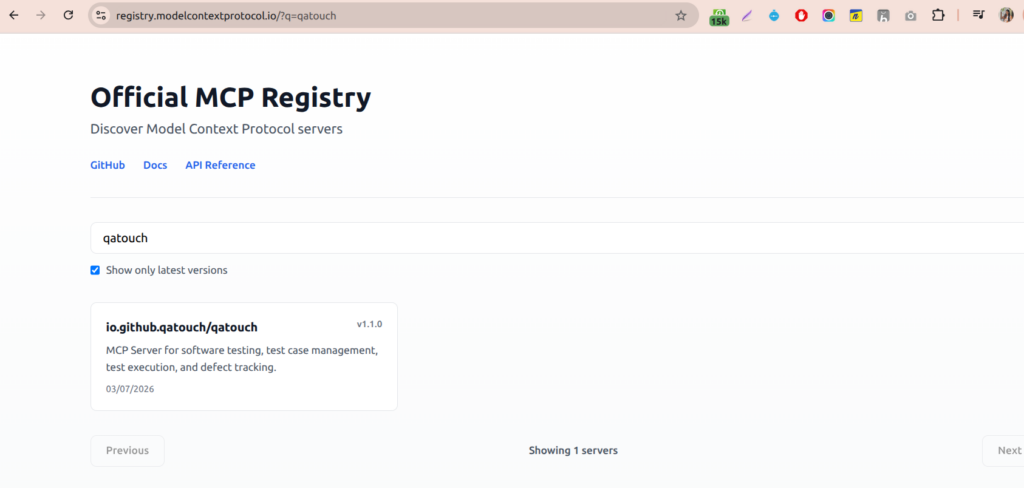
https://registry.modelcontextprotocol.io/?q=qatouch
Getting started
To set up QA Touch MCP, follow the instructions in our blog and complete each configuration step in order. The guide walks you through installing the QA Touch MCP server, setting it up, and connecting it to your AI assistant.
Test Case Creation from Jira Stories with QA Touch MCP and Claude AI
Writing test cases from Jira stories takes time. You read the story, pick out the acceptance criteria, think through edge cases, and type each case into your test management tool. With QA Touch MCP and Claude AI, you can hand most of this work to your AI assistant and spend your time reviewing instead of typing.
Once QA Touch MCP is connected, Claude can read a Jira story and create test cases from it in your QA Touch workspace. Your team gets faster coverage, fewer missed scenarios, and less repetitive work.
Playwright Claude Skill: Capture Browser Actions as QA Touch Test Cases
Writing test cases by hand means noting every click, entry, and result as you test. The QA Touch Playwright MCP Claude Skill (playwright-qatouch-capture-case) does this for you. It records what you do in the browser and turns it into test cases that are ready to import into QA Touch.
- Create test cases in minutes instead of writing each step by hand
- Capture real user behavior, so fewer steps are missed
- Skip the formatting work, since the CSV matches the QA Touch import format
- Go from a recorded flow to a Test Run in one smooth process
What is the Playwright Capture Case Skill?
It is a Claude Skill that watches a real user flow on a website and converts it into test cases. It runs in Claude Desktop and works with two connections: Playwright MCP, which opens and records the browser, and the QA Touch MCP Server, which links Claude to your QA Touch workspace.
How it works
- Start recording: In Claude, give the skill your website URL and the START command, for example /playwright-qatouch-capture-case https://example.com START. A live browser opens.
- Perform your workflow: Use the website as a normal user would. The skill records your clicks, text entries, selections, and form submissions. Passwords are masked, so they are not saved. It does not explore the site on its own, so you stay in control of what gets recorded.
- Stop recording: Go back to Claude and type STOP. The skill groups your actions into logical workflows and creates one test case for each.
- Import into QA Touch: You get a CSV file that is ready to import. Once imported, you can create a Test Run and start executing the cases.
MCP Browser Claude Skill: Generate Test Cases by Crawling Your Web App
Writing test cases for a whole web application takes a lot of time. You have to open every page, find every button and form, and note down each action by hand. The QA Touch MCP Browser Capture Case Skill (mcpbrowser-qatouch-capture-case) does this exploring for you. You give Claude a URL, and it crawls the app and creates test cases that are ready to import into QA Touch.
What is the MCP Browser Capture Case Skill?
It is a Claude Skill that explores a web application on its own, with no manual steps needed. It opens your site, visits the main pages, and finds the UI elements and actions that are available. It then acts like a real user, clicking menus and tabs, scrolling, and filling in forms, to understand how the app works. It runs in Claude Desktop and works with two connections: the Claude Chrome extension, which browses your app, and the QA Touch MCP Server, which links Claude to your QA Touch workspace.
How to Install and Authorize the Claude Chrome Extension
To install the Claude Chrome extension, add the official Claude extension from claude.com in the Chrome Web Store, then open the extension and click Authorize to connect it with your Claude account.
Step 1: Install the Claude Chrome Extension
- Open the Chrome Web Store.
- Search for Claude.
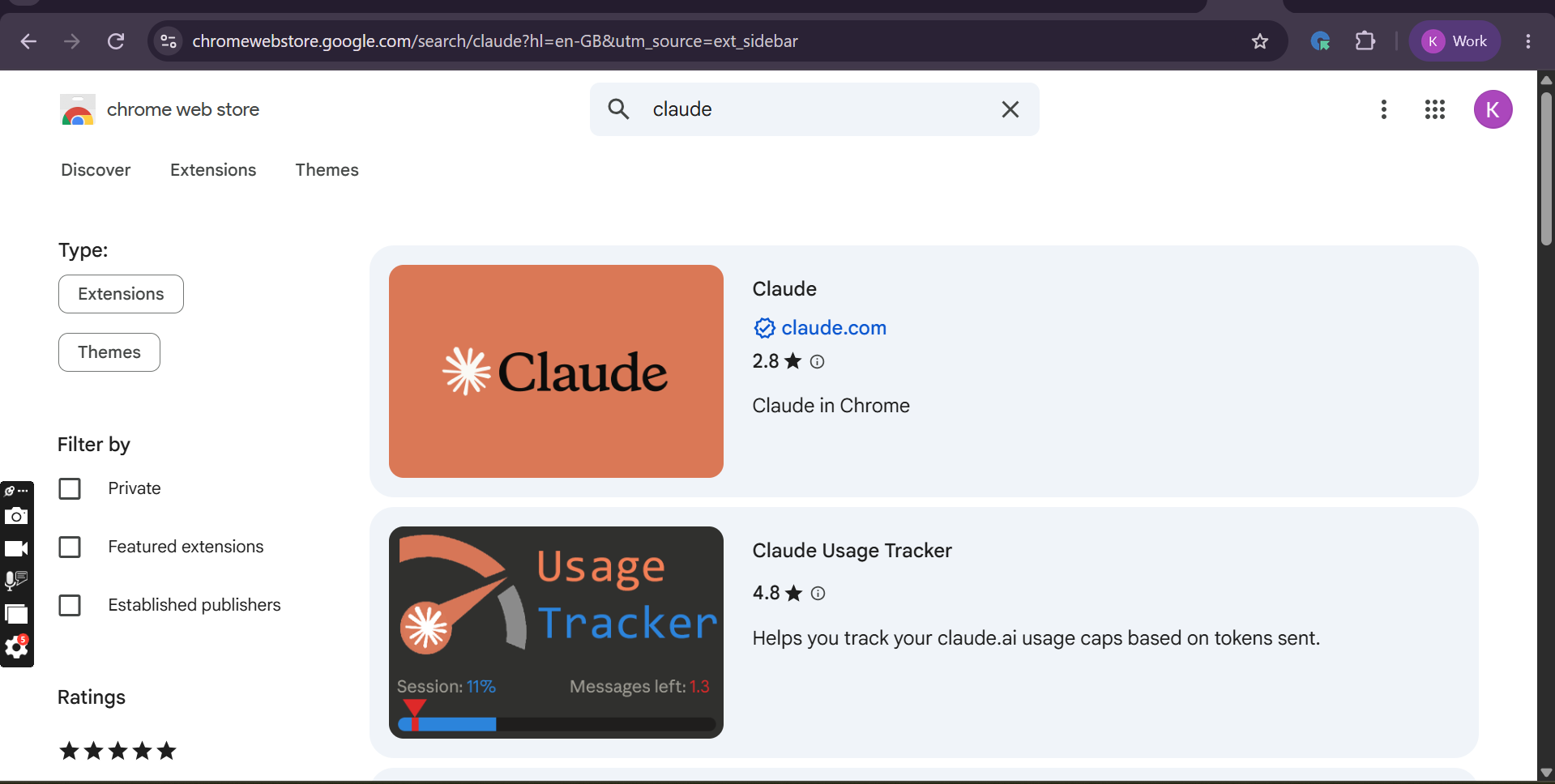
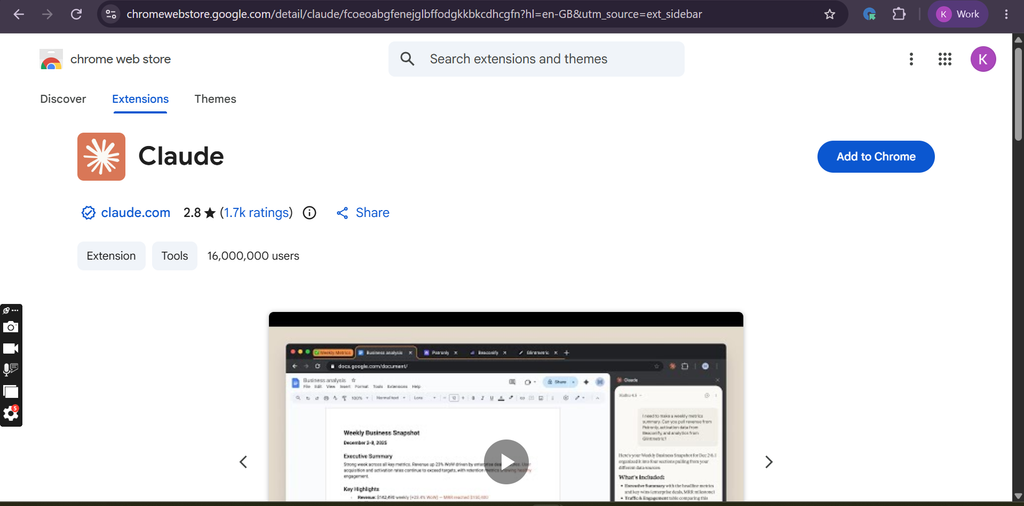
- Select the official Claude extension from claude.com.
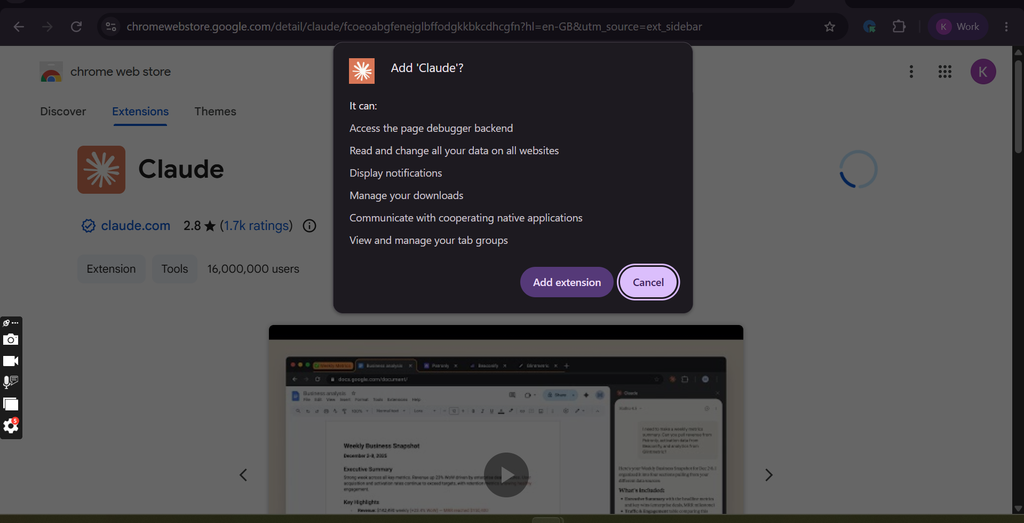
- Click Add to Chrome.
- Review the permissions and click Add extension.
Step 2: Authorize the Claude Chrome Extension
After installing the Claude Chrome extension:
- Open the Claude extension.
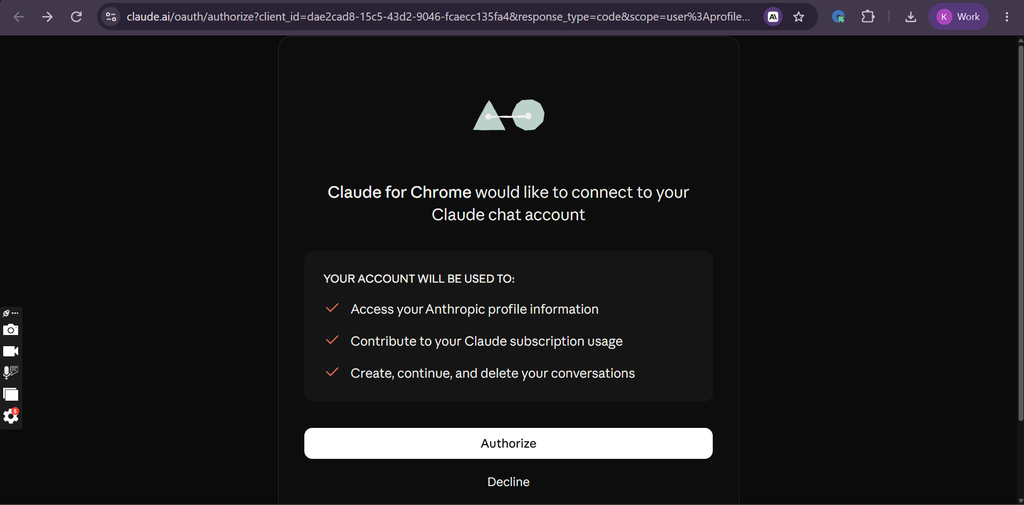
- You will be redirected to the Claude authorization page.
- Review the requested account permissions.
- Click Authorize to connect the extension with your Claude account.
How to Download and Install the MCP Browser Capture Case Skill in Claude
To install the MCP Browser Capture Case Skill, download the skill package from the qatouch-claude-skills GitHub repository and upload it to Claude.
⬇ Download Skill GitHub Repository
mcpbrowser-qatouch-capture-case.skill
How it works
- Share your URL: In Claude, give the skill your application URL, for example /mcpbrowser-qatouch-capture-case www.example.com.
- Let Claude explore: Claude opens the site in Chrome and crawls the pages by itself. It looks at menus, tabs, forms, and other interactions, and records the user flows it sees. You do not need to click anything or type a STOP command.
- Review the test cases: Claude turns what it found into functional test cases, including happy path, validation, negative, navigation, and boundary scenarios.
- Import into QA Touch: You get a CSV file in the QA Touch test case format. Import it, create a Test Run, and start executing.