

Writing test cases takes forever. First, you read the Jira story. Then you think of scenarios. Finally, you type them all into a spreadsheet.
It is slow and repetitive work. What if AI could do it for you?
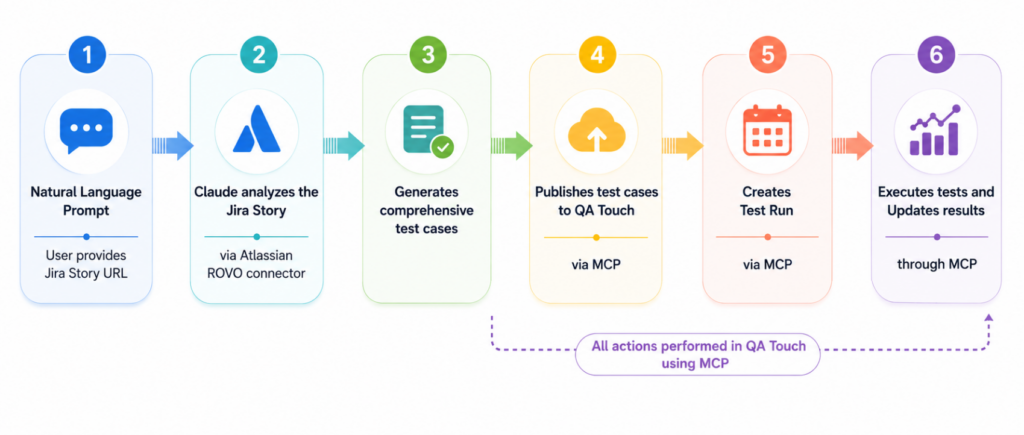
QA Touch has a new way. We made a special tool for QA Touch Claude MCP. This tool turns Jira stories into test cases in minutes.
The skill connects Claude to Jira and QA Touch. You give Claude a Jira story URL. Claude then writes manual test cases for that story. This tool is perfect for beginners or non-technical team members. Sometimes, it is hard to know where to start when writing test cases. You might not know all the edge cases to look for.
The Claude Skill provides a great starting point. It shows you exactly what scenarios you should test. Even people who are new to QA can generate a thorough list of tests using just a Jira story.
MCP servers for both tools. This lets the skill fetch stories and create import files. Atlassian MCP is required. We also recommend QA Touch MCP.
Automate Test Case Creation from Jira Stories with QA Touch MCP and Claude AI
To get started with QA Touch MCP Step, please follow the setup instructions provided in our blog and complete the configuration step by step. The guide walks you through installing, configuring, and connecting the QA Touch MCP server with your AI assistant.
Step 1: Get Your Files Ready
First, you need the skill file. You can download it from our repository.
The file is named jira-qatouch-case-generator.skill.
Step 2: Add the Skill to Claude
Now, open Claude Desktop. Make sure you use the desktop app.
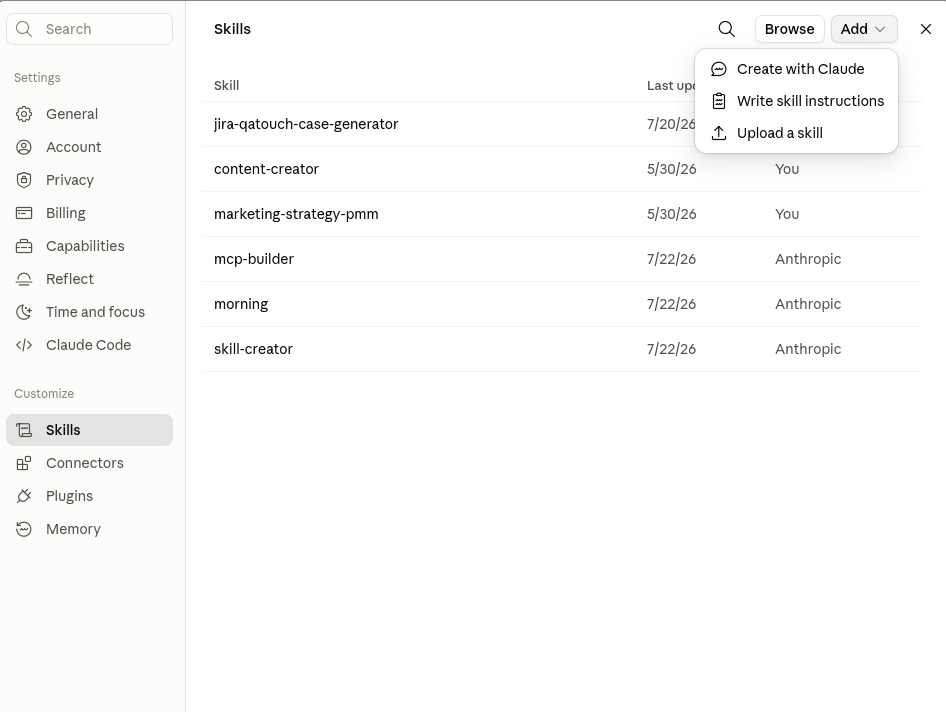
- Click on Settings.
- Go to Customize.
- Choose Skills.
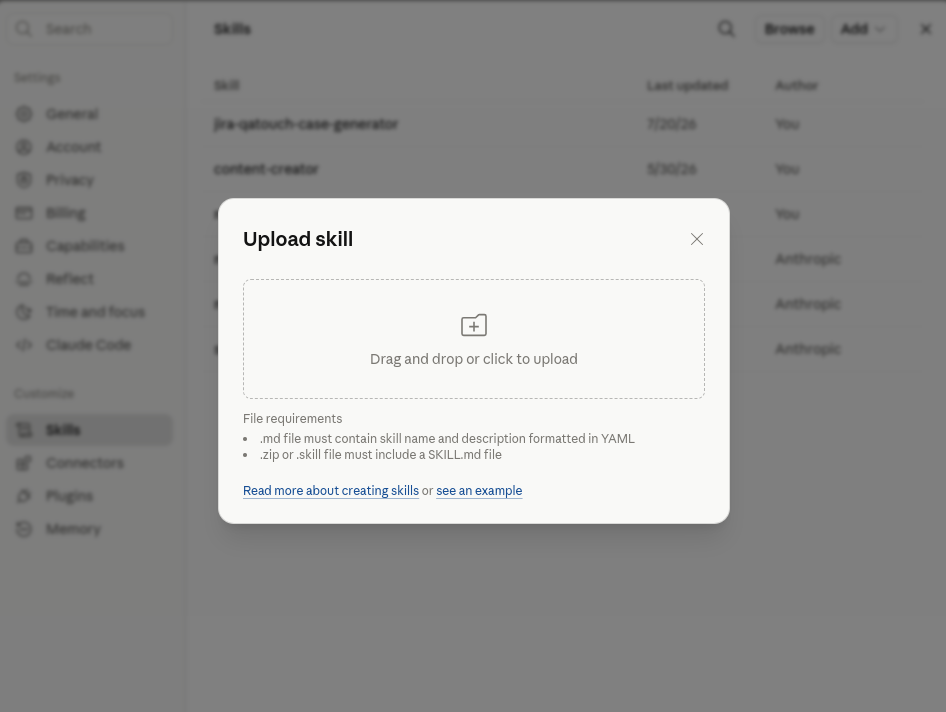
- Click Add and then Upload Skill.
- Select the skill file you downloaded.

Step 3: Connect Your Tools
Claude needs to talk to Jira. It also needs to talk to QA Touch.
You must connect the MCP servers for both tools. This lets the skill fetch stories and create import files. Atlassian MCP is required. We also recommend QA Touch MCP.
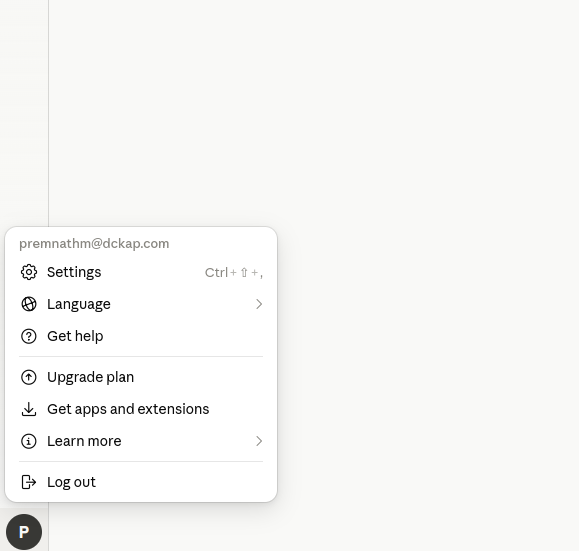
- Click your profile icon in the bottom-left corner.
- Select Settings.
Navigate to Connectors
- In the left sidebar, click Connectors.
- Select Browse Connectors.
Connect Atlassian
- Find the Atlassian (Jira & Confluence) connector.
- Click Connect.
Authorize Access
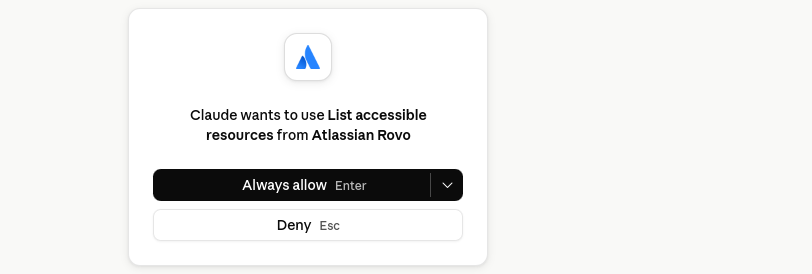
- A new window will open asking you to sign in to your Atlassian account.
- Review the requested permissions.
- Click Accept or Approve to authorize Claude to access your Jira and Confluence data.
Verify the Connection
- Open a new chat in Claude.
- You should see a Connector (or puzzle piece) icon indicating that the Atlassian integration is active.
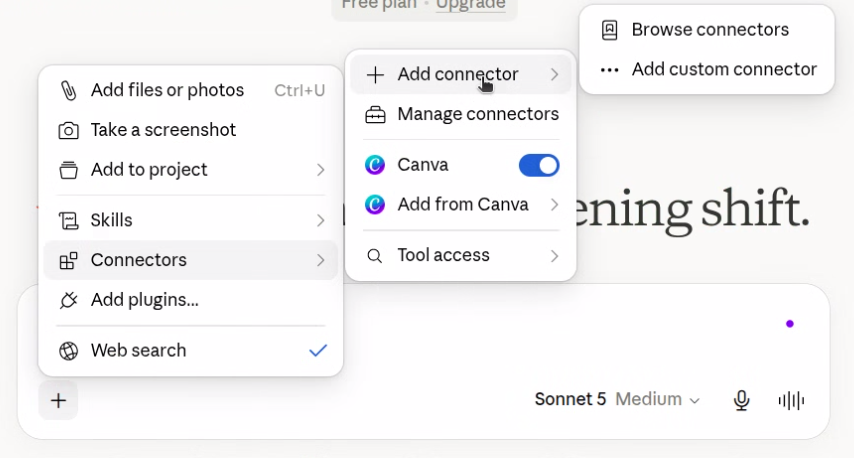
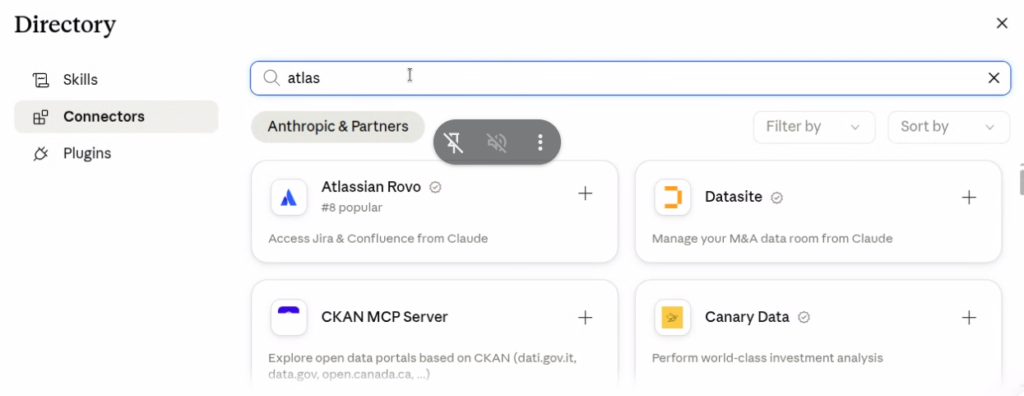
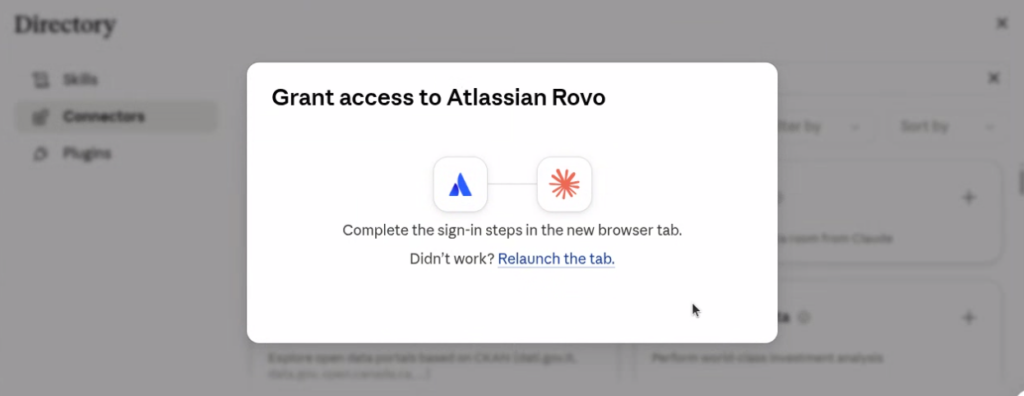
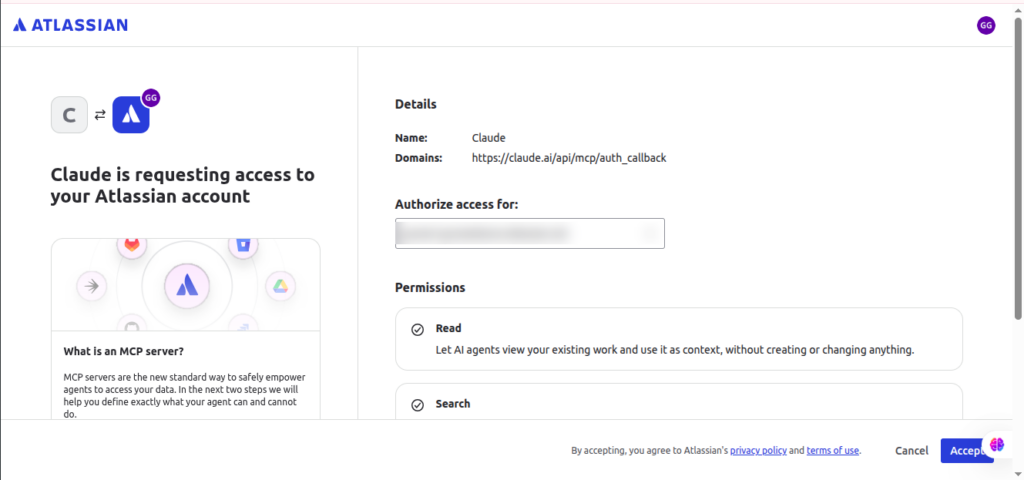
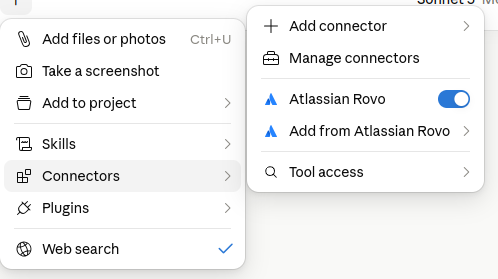
JIRA Connection successfully Connected
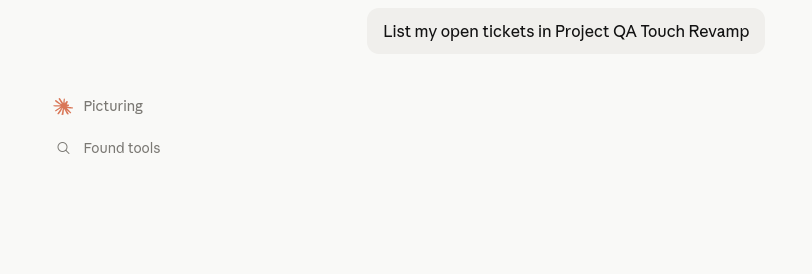
JIRA Prompts Example
- List my open tickets in Project X.
- Show the status of ticket JIRA-102.
- Summarize the issues assigned to me this week.
- Find all high-priority bugs in Project X.
How to Use It
Using the tool is the easiest part.
- Start a new chat with Claude.
- Type /jira-qatouch-case-generator to start the skill.
- Ask Claude to generate cases. Just give it the Jira story ID.
You can type: Generate test cases for Jira Story PROJ-123
You can also use the full Jira URL:[https://company.atlassian.net/browse/PROJ-123](https://company.atlassian.net/browse/PROJ-123)
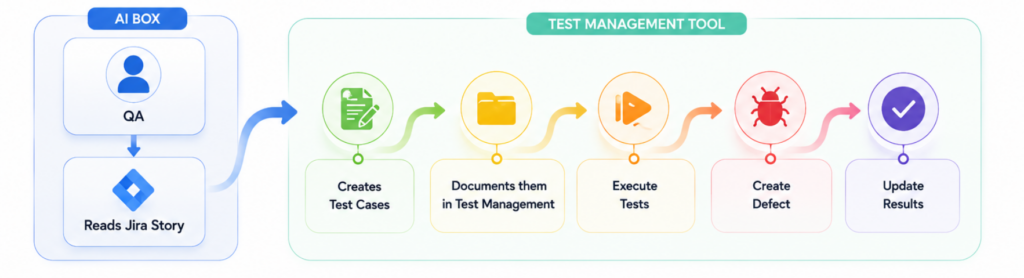
Claude will read the story, the description, and the acceptance criteria. It understands the rules and writes comprehensive manual tests.
Within minutes, you get a QA Touch import-ready CSV file.
- Read Jira Story.
- Understand Requirements.
- Write Test Cases (by hand).
- Format CSV (by hand).
- Import to QA Touch.
Stop wasting time on repetitive writing. Your time is valuable.
Use the new Claude Skill from QA Touch. Get thorough test cases from your Jira stories in minutes.
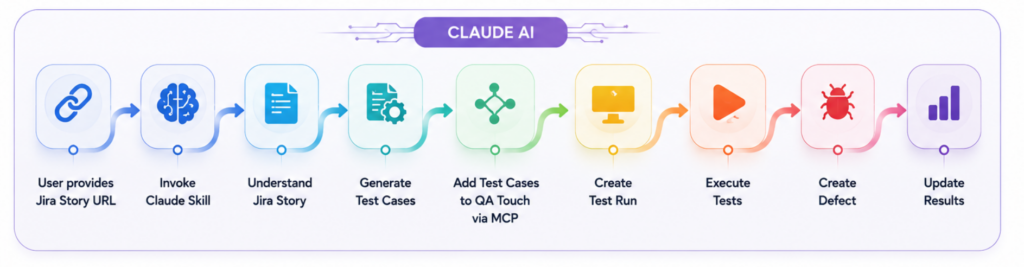
Claude Skill + QA Touch MCP: AI Test Case Generation from Jira Stories and Create Test Run & Result
Step 1. /jira-qatouch-case-generator JIRA URL [https://company.atlassian.net/browse/PROJ-123] Generate 5 or 10 Test Cases from this JIRA Story
/jira-qatouch-case-generator [atlassian URL] Generate Test Cases from this JIRA Story
Step 2. Create all these test cases in QA Touch Project – [PROJECT KEY] [PROJECT NAME]
Step 3. Create test run with these test case Test Run Name “August Sprint” and Milestone name “MCP Demo”
Step 4. Update the result of test cases TR0001 and TR0002 to passed
Step 5. Update the status of test cases TR0003 to failed and Add defect “Sort option is not working”
Step 5. Generate a comprehensive Graphical Test report for this Test Run
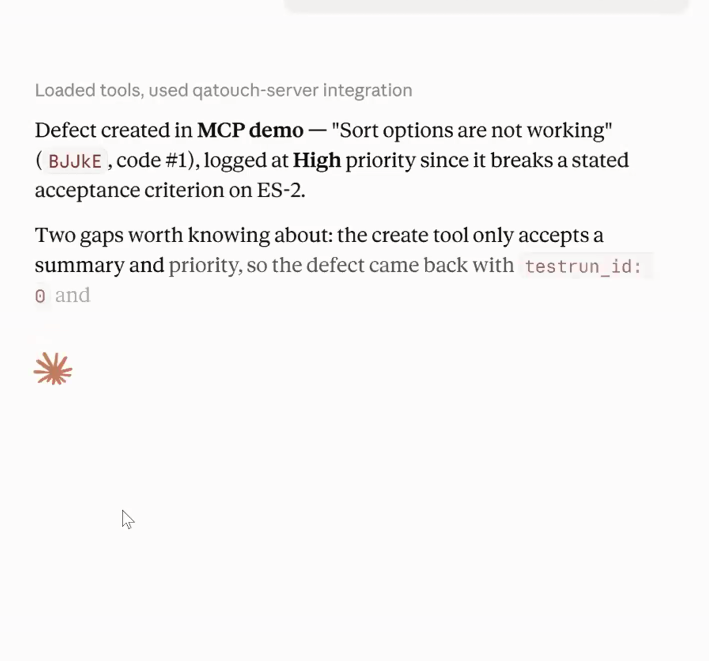
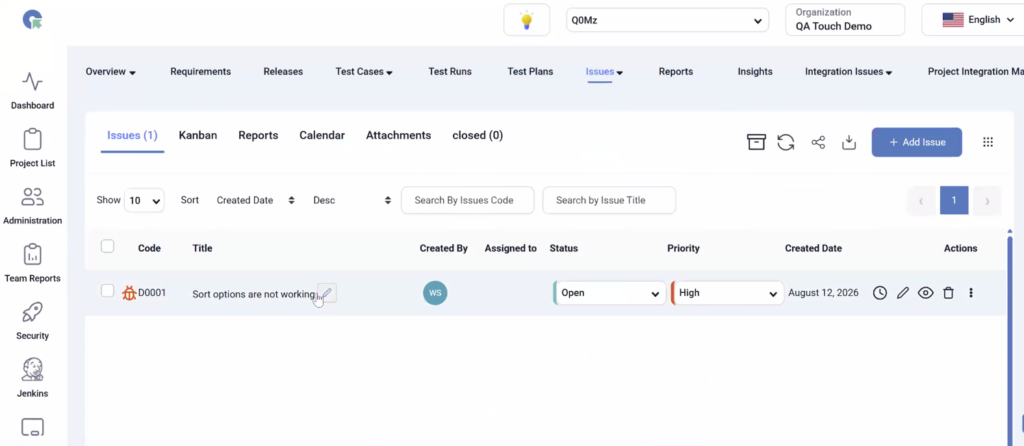
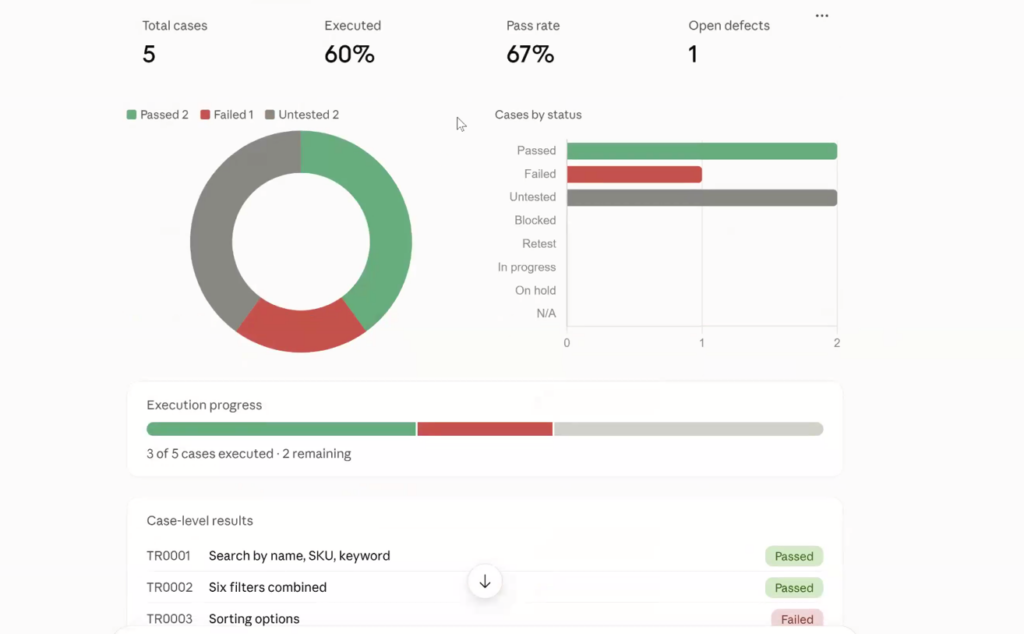
Discover how to build and use a Claude Skill that reads a Jira Story, generates comprehensive AI-powered test cases, and saves them directly to QA Touch using the QA Touch MCP Server.
From Jira Stories to Test Cases: Automate QA with Claude Skills and QA Touch MCP
Please watch below videos