Why connect your AI assistant to QA Touch?
QA Touch MCP connects AI assistants such as Claude Desktop and Cursor to your QA Touch workspace through the Model Context Protocol. Once it is configured with your QA Touch domain and API token, you can list projects, create test cases, update test run results and log defects by typing plain-language prompts. Setup is one config entry and a restart.
Think about a typical regression day. You read a Jira story in one tab, write test cases in another, update run results in QA Touch, then copy failures into a defect form. Writing 20 checkout test cases by hand can take a morning, and the status report still needs to be built.
With QA Touch MCP, the assistant does the clicking. You ask “Generate 20 checkout test cases” or “List test runs from project ABC”, and it calls QA Touch for you. This guide covers what MCP is, how to install and connect the QA Touch MCP server, and three workflows from QA Touch’s own guides.
What is QA Touch MCP?
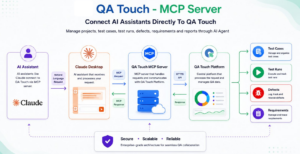
Model Context Protocol (MCP) is an open standard that lets AI applications call external tools through one common interface. An MCP server exposes a set of tools, and an MCP client such as Claude Desktop or Cursor discovers and calls them.
The QA Touch MCP server is the official MCP server for QA Touch. It is open source under the MIT license, published on npm as qatouch-mcp-server, and listed in the MCP Registry. The source code lives at github.com/qatouch/qatouch-mcp-server.
How does it work?
- You type a request in plain language, such as “Create a login test case in project ABC.”
- The AI assistant picks the matching tool, for example
create_test_case. - The QA Touch MCP server runs on your machine and calls the QA Touch API using your domain and API token.
- QA Touch returns the data or confirms the change, and the assistant summarizes the result in the chat.
The MCP server runs locally and reaches QA Touch only through its API, using the domain and token in your config. Access follows your existing QA Touch roles and permissions. The connection can create and modify real project data, so treat it like any other user with your access.
What can you do with QA Touch MCP?
The server exposes tools across the whole test management workflow, from requirements to defects. The table groups the tools listed for the official server.
| Area | Tools | Example prompt |
| Projects and workspaces | list_projects, create_project, count_all_projects, list_workspace | “List all QA Touch projects” |
| Modules and releases | create_module, list_modules, search_modules, create_release, list_releases, search_releases | “Create a Payments module in project ABC” |
| Requirements | create_requirement_document, create_requirement, list_requirements, search_requirements | “List requirements for project ABC” |
| Test cases | create_test_case, create_bulk_test_cases, create_text_test_case, create_exploratory_test_case, import_test_cases, search_test_cases | “Generate 20 checkout test cases” |
| Test runs | create_test_run_with_modules, list_test_runs, list_test_run_results, update_test_run_result_status, update_test_run_results_by_code | “List test runs from project ABC” |
| Defects | create_defect, list_defects, search_defects, list_defect_statuses, list_defect_severities | “Show high priority defects in project ABC” |
| Search across a project | search_project | “Find everything about login in project ABC” |
Practical use cases
- Test design: turn a scenario or acceptance criteria into structured test cases in bulk.
- Regression prep: create a test run from selected modules in one prompt.
- Execution updates: batch-update results by test case code after an automated or manual run.
- Defect triage: search defects by summary, or log a new defect with priority.
- Reporting: ask for a summary of this week’s test progress, or export cases, runs or defects to CSV.
How to set up QA Touch MCP with Claude Desktop
Complete these steps in order. The whole setup usually takes a few minutes.
Prerequisites
| Requirement | Details |
| Node.js | Version 18 or later |
| npm | Latest version |
| QA Touch domain | The domain name of your QA Touch workspace, set as QATOUCH_DOMAIN |
| QA Touch API token | Generated from your QA Touch account, set as QATOUCH_API_TOKEN |
| MCP client | Claude Desktop, Cursor or another MCP-compatible client |
QA Touch’s pricing page lists API access on paid plans. The MCP server depends on the API, so confirm your plan includes it.
Step 1: Check Node.js and npm
Open a terminal and run:
node -v
npm -v
The first command should print v18 or later. If it fails, install Node.js from nodejs.org first.
Step 2: Get your QA Touch domain and API token
Note your workspace domain and generate an API token from your QA Touch account. Treat the token like a password: never paste it into shared documents or commit it to a repository.
Step 3: Choose how to run the server
The recommended option is npx, which downloads and runs the latest version on demand:
npx -y qatouch-mcp-serverAlternatively, install it globally and run it by name:
npm install -g qatouch-mcp-server
qatouch-mcp-server
You don’t need to keep a terminal open. Claude Desktop starts the server itself using the config in the next step.
Step 4: Open the Claude Desktop config file
| Operating system | Config file path |
| Windows | %APPDATA%\Claude\claude_desktop_config.json |
| macOS | ~/Library/Application Support/Claude/claude_desktop_config.json |
| Linux | ~/.config/Claude/claude_desktop_config.json |
If the file doesn’t exist yet, create it at that path.
Step 5: Add the QA Touch MCP server entry
Add this block, replacing the two placeholder values with your own:
{
  "mcpServers": {
    "qatouch": {
      "command": "npx",
      "args": ["-y", "qatouch-mcp-server"],
      "env": {
        "QATOUCH_DOMAIN": "yourdomain",
        "QATOUCH_API_TOKEN": "yourtoken"
      }
    }
  }
}
If the file already lists other MCP servers, add the qatouch entry inside the existing mcpServers object. Don’t create a second mcpServers key.
Step 6: Restart Claude Desktop
Save the file, then quit Claude Desktop completely and reopen it. Closing the window alone may leave the app running with the old config.
Step 7: Verify the connection
Start a new chat and type:
List all QA Touch projectsThe expected result is a list of the projects in your workspace. If Claude asks permission to use a QA Touch tool, approve it.
Using Cursor or another MCP client
The same command, arguments and environment variables work in any MCP-compatible client. QA Touch publishes a dedicated Cursor setup guide, and there is also a step-by-step guide for Kiro AI IDE.
Practical workflows with QA Touch MCP
Workflow 1: Everyday prompts during a test cycle
These prompts come from QA Touch’s documentation. Replace ABC with your project key.
- “Create a login test case in project ABC”
- “Generate 20 checkout test cases”
- “Show high priority defects in project ABC”
- “List test runs from project ABC”
- “Show me all failed test cases from the latest test run”
- “Give me a quick summary of this week’s test progress”
- “Create a rich QA analytics dashboard for Project Ecommerce store PROJECT_KEY”
You can also ask the assistant to page through all test cases, test runs or defects and save them as a CSV file.
Workflow 2: Generate test cases from Jira stories with a Claude Skill
QA Touch’s jira-qatouch-case-generator skill reads a Jira story’s description and acceptance criteria, writes manual test cases, and produces a QA Touch import-ready CSV.
- Download
jira-qatouch-case-generator.skillfrom the qatouch-claude-skills GitHub repository. - In Claude Desktop, go to Settings > Customize > Skills, click Add > Upload Skill, and select the file.
- Connect Jira: go to Settings > Connectors > Browse Connectors, select Atlassian (Jira & Confluence), click Connect, and approve access.
- Connect QA Touch MCP using the steps above.
- In a new chat, type
/jira-qatouch-case-generatorand give the story ID or URL, for example “Generate test cases for Jira Story PROJ-123”.
You can import the CSV into QA Touch. With QA Touch MCP connected, you can also ask Claude to create the cases directly in a named project, then create a test run. For a full walkthrough, see how to generate test cases from Jira stories using Claude Skills and QA Touch MCP.
Workflow 3: Generate test cases from an Android app
The QA Touch Android-MCP Capture Case skill records a flow on an Android emulator or device and turns it into manual test cases.
Prerequisites: Python 3.13, the UV package manager, Android Studio with the Android SDK and ADB, a running emulator or connected device, and a QA Touch domain and API token.
- Start your emulator and run
adb devices. The device must show the statusdevice, notoffline. - Add Android-MCP to your Claude Desktop config next to the
qatouchentry:
"android-mcp": {
  "command": "uvx",
  "args": ["--python", "3.13", "android-mcp"]
}- Upload
mcpandroid-qatouch-capture-case.skillthrough Customize > Skills > Add > Upload Skill, and enable it. - Start recording with
/mcpandroid-qatouch-capture-case <app or URL> START, perform the flow, then typeSTOP.
The skill produces a CSV for QA Touch import. If the QA Touch integration is configured, you can ask for the cases to be created directly; confirm the project and module first. The Android-MCP test case generation guide covers this flow in detail.
QA Touch also offers browser-based capture skills. /playwright-qatouch-capture-case <URL> START records your own browser session, and /mcpbrowser-qatouch-capture-case <URL> crawls a site through the Claude Chrome extension.
Best practices
- Review AI output before you run it. Check generated steps and expected results for accuracy and coverage before adding cases to a test run.
- Name the project and module in every prompt. “Create 10 checkout test cases in module Payments of project ABC” leaves no room for guessing.
- Start with read-only prompts. List and search first, then move on to prompts that create or update data.
- Use test accounts for recordings. Capture skills record what you type, so avoid real customer data.
- Protect the API token. Keep it in the local config file only, and generate a new one if it is ever exposed.
Troubleshooting
| Symptom | What to check |
| QA Touch tools don’t appear in Claude | Validate the JSON (commas, quotes, braces), then fully quit and reopen Claude Desktop |
npx is not recognized | Node.js isn’t installed or isn’t on your PATH; reinstall Node.js 18+ |
| Prompts return errors from QA Touch | Recheck QATOUCH_DOMAIN and QATOUCH_API_TOKEN, and confirm your plan includes API access |
| Android capture can’t see the device | Run adb devices and confirm the status is device |
Frequently Asked Questions
What is QA Touch MCP?
It is the official Model Context Protocol server for QA Touch. It lets MCP-compatible AI assistants manage projects, test cases, test runs, defects, requirements and releases in your QA Touch workspace.
Which AI assistants work with QA Touch MCP?
Claude Desktop and other MCP-compatible clients, including Cursor. QA Touch publishes setup guides for Claude Desktop and Cursor.
Do I need to install anything globally?
No. The recommended config runs the server with npx -y qatouch-mcp-server. A global install with npm install -g qatouch-mcp-server is also supported.
Where do I put my QA Touch API token?
In the env section of your MCP client’s config, as QATOUCH_API_TOKEN, next to QATOUCH_DOMAIN.
Can QA Touch MCP change my test data?
Yes. Tools such as create_test_case, create_defect and update_test_run_result_status write to your workspace, within your existing QA Touch permissions.
Is QA Touch MCP open source?
Yes. The server is released under the MIT license, and its code is on GitHub.
Can I generate test cases from Jira stories?
Yes. Use the jira-qatouch-case-generator Claude Skill with the Atlassian connector, then import the CSV or create the cases through QA Touch MCP.